
How to Automate Appointment Reminders with n8n and Twilio
Appointment no-shows are one of the most preventable sources of lost revenue for service businesses. A dental practice losing three appointments per week at $300 each is losing $46,800 per year, and most of those no-shows happen because the client simply forgot. Automated SMS reminders consistently reduce no-show rates from 30 to 40% down to 10 to 15%, and the system costs under $10 per month to run once it is built.
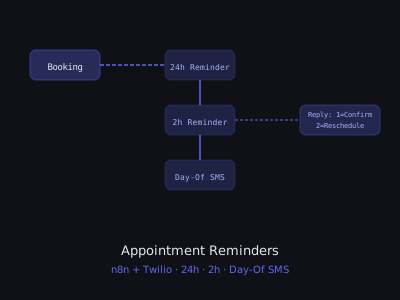
This guide walks you through building a complete appointment reminder automation using n8n (free, self-hostable) and Twilio SMS. The system sends three reminders per appointment, 24 hours before, two hours before, and a morning-of reminder, handles reply confirmations automatically, and notifies your team of reschedule requests. For AI agency owners, this is one of the highest-ROI automations you can offer to service business clients with short implementation time and immediate measurable results.
What This System Does
The completed automation handles the full appointment reminder lifecycle. When a new appointment is added to Google Sheets (or Google Calendar), the system calculates the three reminder times and queues them automatically. Twilio sends personalized SMS messages at the right time, including the appointment details, location, and a reply option to confirm or reschedule. When a client replies, the system routes their response, a "1" confirms and updates the record, a "2" triggers a reschedule flow and notifies the business owner via Slack. After-hours reschedule requests are queued and addressed the next morning.
No-Show Rate Reduction by Reminder Strategy
Prerequisites and Setup
You need three accounts set up before building: an n8n instance (self-hosted free, or n8n Cloud starting at $20/month), a Twilio account ($15 to start, then pay-as-you-go at approximately $0.0079 per SMS), and Google Workspace or Google account for Sheets and Calendar integration. For most client implementations, use n8n Cloud, the self-hosted setup adds complexity that is not worth it for client work.
In Twilio, purchase a local phone number in your client's area code ($1.15/month) and note your Account SID and Auth Token from the Twilio console. In n8n, create a new credential for Twilio using these credentials, and create a new Google Sheets credential using OAuth2 for your client's Google account.
Building the Main Reminder Workflow
The main workflow runs on a schedule trigger, every 30 minutes works well for most service businesses. The first node is a Schedule Trigger set to run every 30 minutes during business hours (7am to 8pm). The second node is Google Sheets, use the "Get Many Rows" operation to pull all appointments from your tracking sheet that have a status of "scheduled" and a date within the next 25 hours.
After pulling appointments, add an IF node to check three conditions: Is the appointment exactly 24 hours away (within a 30-minute window)? Is it exactly two hours away (within a 30-minute window)? Is today the day of the appointment and is it between 7 and 9am? Route each matching appointment to its corresponding reminder branch. This three-branch structure ensures each appointment gets all three reminders without duplication.
In each reminder branch, add a Twilio node configured to send an SMS. The 24-hour reminder message: "Hi [Name], reminder: you have an appointment at [Business] tomorrow at [Time]. Reply 1 to confirm or 2 to reschedule. See you then!" The two-hour reminder: "[Name], your [Business] appointment is in 2 hours at [Time] at [Address]. Reply 1 to confirm." The morning-of reminder: "Good morning [Name], see you today at [Time] at [Business]! Reply 2 if you need to reschedule."
Handling Reply Confirmations
Configure your Twilio phone number's "A message comes in" webhook to point to a new n8n Webhook node. Create a second workflow that receives these incoming SMS replies. The Webhook node receives the Twilio payload containing the reply body and the from-number.
Add a Switch node that routes based on the reply content: if the message contains "1" or "confirm" go to the confirmation branch. If it contains "2" or "reschedule" go to the reschedule branch. If neither, go to a default branch that routes to a human review queue. In the confirmation branch, update the Google Sheets row for this client's upcoming appointment with a status of "confirmed" and send a reply: "Great, you're confirmed! See you at [Time]." In the reschedule branch, send a reply with a booking link and notify the business owner via Slack: "[Name] wants to reschedule their [Time] appointment. Phone: [Number]."
Deploying for Clients and Pricing This Service
For AI agency clients, this automation takes two to four hours to build and configure for a new client. Monthly maintenance is minimal, checking that the workflow is running and reviewing any error notifications. The right pricing for this service as a standalone product is $297 to $497 per month, depending on whether you include the setup fee separately ($500 to $750) or fold it into a higher monthly retainer.
Industries with Highest ROI for Appointment Reminder Automation
The pitch to business owners is simple: if you have 200 appointments per month and a 25% no-show rate, that is 50 missed appointments. At $200 average appointment value, you are losing $10,000 per month. This system costs $497 per month and will recover 40 to 70% of those no-shows, a return of $4,000 to $7,000 on a $497 investment. Build the ROI calculation into your sales conversation and objections about price disappear. For more AI automation services to sell alongside reminder systems, see our guide to AI automation services.
Program · 90 days
Client Accelerator bundles the demo software with live coaching.
A one-time $1,499 purchase, or 4 interest-free payments of $374.75. Includes Ciela AI with 150 personalized demos each month throughout the program, the 90-Day AI Client System, two live group coaching calls every week, sales and outreach templates, 200+ n8n workflow templates, and private Build With Adhiraj resources.
See what is includedCiela AI is the demo platform for AI agencies and AI consultants. It turns any prospect's website into a live, personalized AI demo (chat, voice, or missed-call text-back) you can send before the first call.
Start Client AcceleratorCiela AI pricingAgent builds by nicheAll articles
Community · Training
Join Build With Adhiraj free.
Build With Adhiraj is the free community for people building and growing AI service businesses. Learn alongside other operators as you package, demonstrate, sell, and deliver practical AI systems.
Join Build With Adhiraj free