
How to Build an AI Chatbot for a Small Business Using n8n and OpenAI
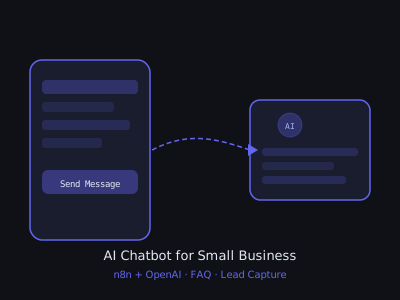
A well-built AI chatbot can answer 80% of a small business's customer questions without human intervention, 24/7. In this tutorial, you'll build a complete AI chatbot using n8n and OpenAI that handles FAQs, captures leads, books appointments, and hands off to a human when needed.
This is one of the most in-demand services for local businesses, dental practices, law firms, gyms, restaurants, and home services companies all need this. You can charge $500–$2,000 to set it up and $150–$400/month to maintain it. A single chatbot build can pay for itself in the first month of retainer fees.
Why Small Businesses Need This Now
The average small business misses 62% of inbound calls and takes over 47 hours to respond to web form leads. That's not a staffing problem, it's a systems problem. A chatbot on the website solves both issues simultaneously by giving every visitor an immediate, intelligent response at any hour.
Consider a dental practice with 300 website visitors per month. Without a chatbot, maybe 30 of those visitors fill out a contact form and half of those convert to booked appointments. With a chatbot that engages visitors, captures name and contact info, and books directly to the scheduling page, conversion rates typically climb to 15–25% of site visitors. That's the difference between 15 new patient inquiries and 45–75, with no additional ad spend.
For you as an agency owner, chatbots are particularly attractive because the value is obvious and measurable. You can show the client a dashboard of conversations handled, leads captured, and handoffs triggered. That makes renewals easy and upsells natural.
What You'll Build
- A webhook-powered chatbot backend in n8n
- Conversation memory using a Google Sheet or database
- FAQ answering trained on the business's actual content
- Lead capture with name, email, and phone collection
- Appointment booking trigger via Calendly link
- Human handoff when the bot can't answer
- Slack or email notification for the business owner
- Multi-client support from a single workflow
Prerequisites
Before you start building, make sure you have the following ready:
- n8n instance, self-hosted or n8n Cloud. Self-hosted on Railway or Render costs about $5–$10/month. n8n Cloud starts at $20/month and removes infrastructure management entirely.
- OpenAI API key, create one at platform.openai.com. Add $10 of credit to start. A typical small business chatbot handles 500–1,000 conversations/month for under $2 in API costs using gpt-4o-mini.
- Google account, for Google Sheets as your lightweight database. You can swap this for Airtable or Supabase later.
- Client's FAQ data, services offered, hours, pricing, location, common questions. Ask for this via a simple onboarding form before you start building.
Architecture Overview
The chatbot works on a request-response model via webhooks. Your client's website sends a message to an n8n webhook → n8n processes it through OpenAI → n8n sends back the response → the website displays it.
The frontend widget can be a simple JavaScript snippet embedded on any website, or you can use a service like Tidio, Crisp, or Intercom with a custom webhook backend.
The full node sequence in n8n is: Webhook → Load Business Config → Load History → Build Messages Array → OpenAI → Parse Response → Save to History → IF Lead Captured → IF Handoff → Respond to Webhook. Twelve nodes total, all wired together in about an hour once you know the pattern.
Step 1: Set Up Your Google Sheets Database
Before touching n8n, create two Google Sheets in a shared Drive folder:
Sheet 1, business_config: Columns: business_id, business_name, business_type, location, hours, services, pricing, faq_1_q, faq_1_a, faq_2_q, faq_2_a (add as many FAQ columns as needed), booking_url, owner_email, slack_webhook.
Sheet 2, conversation_history: Columns: session_id, business_id, role, content, timestamp.
Fill in one row of business_config for your first client before starting. Use a simple business_id like biz001. This sheet becomes the single source of truth for all client configurations, updating a business's info is just editing a spreadsheet row, no workflow changes needed.
Step 2: Create the Webhook Trigger
Add a Webhook node as your trigger. Configure:
- HTTP Method: POST
- Path: chatbot (your URL will be:
https://your-n8n.com/webhook/chatbot) - Authentication: Header Auth with a secret key (prevents unauthorized calls)
- Response Mode: Last Node
The incoming payload should have: session_id, message, business_id.
The session_id is what links messages in the same conversation. The frontend widget generates a UUID when the chat opens and sends it with every message. A simple way to generate one client-side: crypto.randomUUID() stored in sessionStorage so it persists through the visit but resets on a new browser session.
Security note: the Header Auth key should be a random 32-character string. Store it as an environment variable in n8n and in your chat widget's JavaScript. Never hardcode it in a public repository.
Step 3: Load Business Configuration
Add a Google Sheets node immediately after the webhook. This loads the business-specific configuration that will drive the system prompt:
- Operation: Read Rows
- Sheet: business_config
- Filter:
business_idequals{{$json.business_id}}
This returns a single row with all the business data. If no row is found, add an IF node to return a 400 error response, this prevents unauthorized business_id values from running through your workflow and consuming OpenAI credits.
Step 4: Load Conversation History
For the chatbot to remember context, you need to store and retrieve conversation history. Use a second Google Sheets node to look up previous messages:
- Operation: Read Rows
- Filter:
session_idequals{{$json.session_id}} - Sort by: timestamp ascending
- Limit: last 10 messages (keeps token count manageable)
Your history sheet columns: session_id, role, content, timestamp, business_id.
Limiting to 10 messages is intentional. Each message in history adds tokens to your OpenAI call. At 10 messages, you're looking at maybe 500–800 additional tokens per call, totally manageable. At 50 messages, you're burning money unnecessarily. The last 10 exchanges give the AI more than enough context for any typical customer service conversation.
Step 5: Build the System Prompt Dynamically
Add a Code node to build the system prompt from the business's FAQ data. This is the most important node in the workflow, a well-crafted system prompt is the difference between a chatbot that converts and one that frustrates users.
Pull the business config from the previous node and construct the prompt:
- Fetch the business config from a Google Sheet using
business_id - Include: business name, services, hours, pricing, location, common FAQs
- Include the lead capture instructions and handoff triggers
Example system prompt structure:
You are an AI assistant for [Business Name], a [type of business] in [location]. Your job is to answer customer questions, capture lead information, and book appointments. Business hours: [hours]. Services: [services]. Pricing: [pricing].
Lead capture rules: If the user asks about pricing, scheduling, or expresses interest in services, collect their name, email, and phone number before providing details. Ask for one piece of info at a time.
Handoff rule: If you cannot answer a question with certainty, say "Let me connect you with a team member" and set handoff: true in your JSON response.
Always respond with JSON: { "message": "your response" "handoff": false, "lead_captured": false, "lead_data": {} }
A few prompt engineering tips that consistently improve chatbot performance:
- Be specific about tone: "Respond warmly and professionally. Use short paragraphs. Never use jargon." Generic instructions produce generic responses.
- List what the bot should NOT do: "Never discuss competitors. Never quote prices outside the ranges listed. Never promise same-day appointments." Negative constraints prevent embarrassing hallucinations.
- Give examples of good responses: Including one or two example Q&A pairs in the system prompt dramatically improves response quality for niche industries.
- Specify the JSON schema strictly: If you want reliable JSON parsing downstream, show the model the exact schema in the prompt and repeat it at the end as a reminder.
Step 6: Construct the Messages Array
Add a Code node to build the messages array for OpenAI:
const history = $('Load History').all().map(item => ({ role: item.json.role, content: item.json.content })); const messages = [ { role: 'system' content: systemPrompt }...history, { role: 'user' content: currentMessage } ]; return [{ json: { messages } }];
The messages array structure is: system prompt first, then conversation history in chronological order, then the new user message last. This ordering is important, OpenAI weighs recent messages more heavily, so the current user message being last ensures the model focuses on answering what's being asked right now.
Step 7: Call OpenAI
Add an OpenAI node configured as:
- Resource: Chat
- Operation: Message a Model
- Model: gpt-4o-mini
- Messages: expression mode,
{{$json.messages}} - Temperature: 0.4 (consistent but not robotic)
- Max Tokens: 500
- Response Format: JSON Object
Why gpt-4o-mini over gpt-4o? Cost and speed. gpt-4o-mini costs about $0.15 per million input tokens. A typical chatbot message exchange uses roughly 1,000–1,500 tokens. At 1,000 conversations/month, that's about $0.15–$0.23 in API costs. gpt-4o is 10x more expensive and only 20% better, not worth it for FAQ-style customer service. Reserve gpt-4o for chatbots where complex reasoning is required, like legal intake or technical support.
The Response Format: JSON Object setting is critical. It tells OpenAI to always return valid JSON, which prevents parsing errors in your downstream nodes. Without this, the model occasionally wraps its response in markdown code blocks or adds extra text before the JSON.
Step 8: Parse the Response
Add a Code node to parse the JSON response:
const response = JSON.parse($input.first().json.message.content); return [{ json: { message: response.message, handoff: response.handoff || false, lead_captured: response.lead_captured || false, lead_data: response.lead_data || {} session_id: sessionId, business_id: businessId } }];
Always use fallback values with || false and || {}. Even with JSON mode enabled, the model occasionally omits fields from the response object when it considers them irrelevant. Defensive parsing prevents your IF nodes downstream from breaking on missing keys.
Add a try/catch block around the JSON.parse call and return a safe fallback message if parsing fails: { message: "I'm having a moment — could you rephrase that?", handoff: false, lead_captured: false }. This keeps the chatbot functional even on edge cases.
Step 9: Save Message to History
Add a Google Sheets node to save the conversation turn:
- Operation: Append Row
- Save both the user message and assistant response in separate rows
- Timestamp:
{{new Date().toISOString()}}
Save two rows per turn: one with role: user and the incoming message content, and one with role: assistant and the response. The simplest way to do this in n8n is to use a Split in Batches node or run two sequential Append Row operations. Keeping both sides of the conversation in the same sheet makes the history lookup in Step 4 work correctly.
Periodically clean up old history rows. Sessions older than 7 days can be deleted without any impact on active conversations. Add a scheduled workflow that runs weekly and deletes rows where timestamp is more than 7 days old, this keeps your sheet fast and your Google Sheets quota under control.
Step 10: Handle Lead Capture
Add an IF node checking if lead_captured === true. On the true branch:
- Add a HubSpot or Google Sheets node to save the lead
- Add a Gmail node to notify the business owner
- Subject:
New Lead Captured: {{$json.lead_data.name}}
For the lead notification email, make it scannable for a busy business owner. Include: visitor name, email, phone, what service they asked about, and a direct link to start the conversation. A one-paragraph summary of the conversation context is more useful than a raw transcript. You can prompt OpenAI to include a conversation_summary field in the JSON response and pass that into the email body.
For clients who use HubSpot, use the HubSpot node to create a Contact and a Deal simultaneously when a lead is captured. Set the Deal stage to "New Lead" and assign it to the business owner. This automatically feeds their sales pipeline without any manual data entry on their part, and it's a tangible value-add that justifies your retainer fee.
Step 11: Handle Human Handoff
Add another IF node for handoff === true. On the true branch:
- Send a Slack message to the business owner with the conversation thread
- Send an SMS via Twilio for urgent cases
- Include the session_id so the human can pick up the conversation
The Slack message format matters. Give the business owner everything they need to jump into the conversation immediately: the visitor's name (if captured), their question, the chatbot's last response, and a note that a human is needed. Format it like this:
Human handoff requested. Visitor: [name or "Unknown visitor"]. Question: [user's last message]. The chatbot couldn't answer this confidently. Session ID: [session_id]. Reply directly on the website chat or call back if you have their number.
For businesses that use SMS-heavy workflows, the Twilio SMS is more reliable than Slack for getting immediate attention. Set the SMS to trigger only when handoff === true AND the conversation happened outside business hours. During business hours, Slack alone is sufficient.
One underused feature: log all handoff events to a separate "handoffs" sheet. Review this monthly with your client, the questions that repeatedly trigger handoffs are gaps in the FAQ data that you should fill in. Each gap you close reduces the human workload and strengthens your case for the retainer.
Step 12: Return the Response
Add a Respond to Webhook node as the final step:
- Response Code: 200
- Response Data:
{ "message": "{{$json.message}}", "session_id": "{{$json.session_id}}" }
The response time from webhook receipt to response delivery should be under 3 seconds for a good user experience. If your n8n instance is slow, the main culprits are the Google Sheets read operations. You can speed these up by batching the two sheet reads into parallel nodes using n8n's Merge node, or by switching to a faster database like Supabase or Airtable once you're ready to invest in the infrastructure.
Deploying the Chat Widget
The simplest way to embed this on a client's site is to use a free chat widget like Tidio or Crisp with a custom webhook backend. Alternatively, build a minimal JavaScript chat widget that makes POST requests to your n8n webhook URL.
A minimal embed snippet looks like this:
<script src="https://your-cdn.com/chatbot.js" data-webhook="https://your-n8n.com/webhook/chatbot" data-business="biz123"></script>
For the JavaScript widget itself, you need about 80 lines of vanilla JS to get a functional chat interface. The widget should: generate and persist a session_id in sessionStorage, display an opening message from the bot on load, POST each user message to your webhook with the session_id and business_id, display the response with a typing indicator while waiting, and handle network errors gracefully.
Hosting the widget script: upload it to an S3 bucket or Cloudflare R2 with a CDN in front. Total cost is essentially zero for the storage and bandwidth. Give each client a unique embed snippet that has their business_id baked in as a data attribute, this is what routes to their config row in your sheet.
Using Tidio or Crisp instead of a custom widget: both platforms have a "developer" integration that lets you intercept messages and route them to a custom backend. The benefit is you get their polished UI, mobile app, and conversation inbox for free or low cost. The downside is less control over the widget appearance. For most small business clients, Tidio or Crisp is the faster path to deployment.
Scaling Across Multiple Clients
The beauty of this architecture is that one workflow handles unlimited clients using the business_id parameter. Each business gets its own config row in your Google Sheet with its own FAQ data, system prompt, and routing rules. You don't need a separate workflow per client.
In practice, as you grow past 10 clients, you'll want to move from Google Sheets to a proper database. Airtable works well up to 25–30 clients. Beyond that, Supabase (PostgreSQL) is the right move, it's free up to 500MB and handles thousands of concurrent reads without breaking a sweat. The n8n Postgres node makes this migration straightforward since the query structure is the same as the Sheets filter logic.
Consider building a simple admin interface for client onboarding. A Typeform or Tally form that collects all the business config fields and automatically writes them to your database as a new row eliminates the manual step of editing a spreadsheet for every new client. Connect the form submission to an n8n webhook that creates the config row, generates a business_id, and emails the client their embed snippet. Full self-serve onboarding in one automation.
Pricing and Selling This Service
The chatbot is best sold as a productized service with clear tiers rather than custom quotes. A simple pricing structure that works:
- Starter, $750 setup + $150/month: FAQ answering only, up to 500 conversations/month, email notifications for leads
- Growth, $1,200 setup + $250/month: FAQ answering + lead capture + human handoff, up to 2,000 conversations/month, Slack notifications, monthly performance report
- Pro, $2,000 setup + $400/month: Everything in Growth + HubSpot/CRM integration, custom widget design, quarterly prompt optimization, priority support
The monthly retainer is where the real business is. Position it as ongoing optimization, not just hosting. Every month you should be reviewing the handoff logs, filling FAQ gaps, and updating pricing or hours as the business changes. That active management is worth the fee and dramatically reduces churn.
When pitching this to a prospect, lead with the missed opportunity cost rather than the technology. "Your website gets 400 visitors a month. Right now, most of them leave without contacting you. We add a chatbot that starts conversations automatically. Most businesses we work with see 15–25% of visitors engage with it, that's 60–100 potential leads you're currently walking away from." That framing makes the $150/month retainer feel like an obvious investment.
Common Mistakes to Avoid
Overpromising the AI's knowledge: The chatbot only knows what you put in the system prompt. If the business has 50 services and you summarize them into a paragraph, the bot will hallucinate details. Either list every service with specifics or build a vector database for retrieval. For most small businesses, comprehensive system prompt data is the right answer.
Not testing edge cases before launch: Run at least 20 test conversations before going live. Test: off-topic questions, rude messages, pricing inquiries, appointment booking requests, competitors mentioned by name, questions the bot definitely can't answer. Document how it handles each and refine the prompt accordingly.
Ignoring the handoff experience: The handoff is where the chatbot hands a potential customer to a human. If that handoff is a cold Slack message with no context, the business owner has to start the conversation from scratch. Make the handoff notification rich enough that the human can respond immediately and intelligently.
Not setting response expectations: The chatbot should tell visitors when to expect a human response if handoff is triggered. "I've flagged this for our team, someone will reach out within 2 business hours." This manages expectations and reduces the chance of a visitor leaving frustrated.
Get the Free Template
The complete n8n workflow template for this build is available for free inside our community. Download it and have this running for a client in under an hour.
Join Kingstone AI Operators, free, to access all templates.
For more on n8n automation foundations, read our beginner's guide to building AI agents in n8n. And if you're choosing between platforms, see our breakdown of n8n vs Make vs Zapier for AI agents.
Want to learn how to build and sell AI automations? Kingstone AI Operators is our free community for AI automation agency builders. Join Kingstone AI Operators, free.
FAQ
Frequently Asked Questions
How do I build an AI chatbot for a small business using n8n?
Create a Webhook node in n8n to receive chat messages, load conversation history from Google Sheets, build a dynamic system prompt with business FAQ data, call OpenAI GPT-4o-mini for responses, parse the JSON output, save messages to history, handle lead capture and human handoff, and return the response via a Respond to Webhook node. Embed a chat widget on the client's site that POSTs to your webhook.
How much should I charge for building an AI chatbot for a local business?
Charge $500 to $2,000 for initial setup depending on complexity and $150 to $400 per month for maintenance, prompt tuning, and monitoring. For businesses with high customer inquiry volume like dental practices or law firms, the chatbot handles 80% of questions automatically, making the monthly fee a fraction of what a part-time receptionist would cost.
How do I add conversation memory to an n8n chatbot?
Store each message exchange in a Google Sheet or database with columns for session_id, role, content, timestamp, and business_id. Before each AI call, load the last 10 messages for the session using the session_id filter. Pass this history as part of the messages array to OpenAI so the model has full context of the conversation.
What is the best chat widget to use with an n8n chatbot backend?
Tidio and Crisp offer free tiers with custom webhook backends. For full control, build a minimal JavaScript widget that POSTs messages to your n8n webhook URL and displays responses. The widget only needs a text input, send button, and message display area. Embed it with a single script tag on any website.
How do I handle human handoff in an n8n AI chatbot?
Include a handoff rule in the system prompt instructing GPT-4 to set handoff to true when it cannot answer with certainty. Add an IF node checking this flag. On the true branch, send a Slack message with the full conversation thread to the business owner, send an SMS for urgent cases via Twilio, and include the session_id so the human can pick up the conversation.
Can one n8n chatbot workflow serve multiple small business clients?
Yes. Use a business_id parameter in each webhook call. Store each business's configuration, FAQ data, system prompt, and routing rules in separate rows of a Google Sheet. The workflow dynamically loads the correct config based on business_id, so one workflow handles unlimited clients without duplication.
How do I capture leads through an AI chatbot built with n8n?
Instruct GPT-4 in the system prompt to collect name, email, and phone number when users express interest in services. The AI asks for one piece of info at a time naturally within the conversation. When lead_captured is true in the JSON response, an IF node routes to a branch that saves the lead to HubSpot or Google Sheets and notifies the business owner via email.
What OpenAI model should I use for a small business chatbot?
Use gpt-4o-mini for most small business chatbots. It is fast, affordable at roughly $0.15 per million input tokens, and produces high-quality conversational responses. Set temperature to 0.4 for consistent but natural-sounding replies and max_tokens to 500 to keep responses concise. Reserve gpt-4o for chatbots that need complex reasoning.
Program · 90 days
Client Accelerator bundles the demo software with live coaching.
A one-time $1,499 purchase, or 4 interest-free payments of $374.75. Includes Ciela AI with 150 personalized demos each month throughout the program, the 90-Day AI Client System, two live group coaching calls every week, sales and outreach templates, 200+ n8n workflow templates, and private Build With Adhiraj resources.
See what is includedCiela AI is the demo platform for AI agencies and AI consultants. It turns any prospect's website into a live, personalized AI demo (chat, voice, or missed-call text-back) you can send before the first call.
Start Client AcceleratorCiela AI pricingAgent builds by nicheAll articles
Community · Training
Join Build With Adhiraj free.
Build With Adhiraj is the free community for people building and growing AI service businesses. Learn alongside other operators as you package, demonstrate, sell, and deliver practical AI systems.
Join Build With Adhiraj free