
Build an AI Email Assistant That Qualifies and Responds to Leads (n8n + Gmail + OpenAI)
Based on industry patterns, the average response time for a business replying to a new lead is measured in hours, not minutes. The response time that maximizes conversion is under 5 minutes. That gap is where AI email automation wins, and it is one of the most compelling use cases you can sell as an AI agency owner.
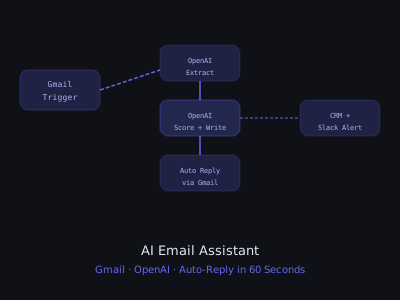
In this tutorial, you will build an AI email assistant in n8n that monitors a Gmail inbox, reads incoming lead emails, qualifies the lead using OpenAI, and sends a personalized response automatically, all within 60 seconds of the email arriving. This is a real, deployable automation that you can build for clients and charge $800-$2,000 to set up with an ongoing monthly retainer.
What You Will Build
- Gmail trigger watching for new emails in a specific label or inbox
- Email parsing to extract lead information
- OpenAI-powered lead qualification and scoring
- Personalized response generation based on lead context
- Automatic reply sent from Gmail
- CRM entry for the new lead
- Slack notification with the lead summary and AI response preview
Why This Automation Matters for Local Businesses
Local service businesses, plumbers, dentists, real estate agents, HVAC contractors, lose deals every day because their response time is too slow. A homeowner who fills out a contact form on a plumbing website at 8pm on a Thursday does not wait until Monday morning for a response. They call the next plumber on Google. An AI email assistant that responds within 60 seconds keeps that lead engaged while the business owner sleeps. This is why lead response automation is consistently one of the easiest AI services to sell, the pain is immediate, the solution is tangible, and the ROI is obvious.
Lead Response Time vs Conversion Probability (Based on Industry Patterns)
Step 1: Set Up Gmail Trigger
In n8n, add a Gmail Trigger node as your workflow entry point:
- Event: Message Received
- Credentials: connect your client's Gmail via OAuth
- Filters: only trigger on emails matching certain criteria
For filtering, use one of these approaches:
- Watch a specific Gmail Label (e.g., "New Leads"), manually label or use a Gmail filter to auto-label contact form submissions
- Filter by sender domain patterns in a Code node
- Filter by subject line keywords like "inquiry" or "contact form"
The simplest approach: in Gmail, create a filter that applies the label "n8n-leads" to emails from your contact form or from specific domains, then configure n8n to watch that label. This gives you granular control over which emails trigger the automation without modifying the n8n workflow each time the client wants to adjust the scope.
IMAP Trigger Alternative for Non-Gmail Clients
Not all clients use Gmail. For clients on Outlook, Zoho, or other email providers, use the IMAP Email Trigger node instead. The IMAP trigger connects to any email server that supports IMAP (which is virtually all of them) and polls for new messages at a configurable interval. Set the poll interval to 1 minute for near-real-time response. The trade-off is that IMAP polling introduces a slight delay compared to Gmail's push-based trigger, but 1-minute response time is still dramatically faster than manual response and well within the window that maximizes conversion.
Step 2: Parse the Email Content
Add a Code node to extract structured data from the email:
const email = $input.first().json; const body = email.text || email.snippet || ''; const subject = email.subject || ''; const fromEmail = email.from?.value?.[0]?.address || ''; const fromName = email.from?.value?.[0]?.name || ''; return [{ json: { from_email: fromEmail, from_name: fromName, subject, body, message_id: email.id, thread_id: email.threadId } }];
For contact form submissions, the email body typically follows a template. You can use a more targeted regex or simply pass the full body to OpenAI for extraction. The AI approach is more flexible because it handles variations in form layouts, free-text messages, and mixed-format inquiries without requiring custom parsing logic for each client's contact form.
Handling Different Email Formats
Lead emails arrive in many formats: structured contact form submissions with labeled fields, free-text emails from prospects who found the client's email address directly, forwarded inquiries from partners or listing sites, and even auto-generated emails from platforms like Zillow, HomeAdvisor, or Thumbtack. Your parsing logic should be robust enough to handle all of these. The most reliable approach is to extract the raw text content and pass the entire thing to OpenAI for structured extraction rather than trying to parse each format with regex. GPT-4o-mini handles this reliably and the cost per extraction is negligible.
Step 3: Extract Lead Information with OpenAI
Add an OpenAI node to extract structured lead data from the email body:
- Model: gpt-4o-mini
- System: "Extract structured lead information from email content. Return a JSON object with: name, email, phone, company, message, inquiry_type (sales/support/other), urgency (high/medium/low)."
- User message:
Email from: {{$json.from_name}} {{$json.from_email}}. Subject: {{$json.subject}}. Body: {{$json.body}} - Response Format: JSON Object
The system prompt is where your customization lives. For a plumbing company, add instructions like "If the message mentions emergency, flooding, or burst pipe, set urgency to high." For a law firm, "If the message mentions accident, injury, or insurance claim, set inquiry_type to personal_injury." These niche-specific extraction rules are part of what makes your setup valuable beyond a generic template.
Step 4: Qualify the Lead
Add a second OpenAI node for qualification scoring:
- System: "You are a B2B sales qualification expert. Score this lead from 1-10 and classify them as hot/warm/cold. Consider: urgency, budget signals, company size indicators, and specificity of request."
- User: pass the extracted lead data from the previous step
- Output JSON:
{ "score": 1-10, "classification": "hot/warm/cold" "key_buying_signals": [], "recommended_response_tone": "urgent/professional/informational" }
Calibrating Qualification Criteria Per Client
Qualification scoring must be calibrated for each client's business model. A dental practice values a lead mentioning "emergency toothache" much higher than one asking about "teeth whitening pricing" even though both are potential patients. A SaaS company values a lead from a company with 50+ employees higher than one from a solo freelancer. Build a qualification rubric with each client during onboarding and encode those priorities into the system prompt. Review and adjust the scoring criteria after the first 30 days based on which leads actually converted to customers.
Step 5: Generate the Personalized Response
Add a third OpenAI node to write the actual email response:
- System: your client's email assistant persona, include their name, business, tone, and key value props
- User: "Write a reply to this lead inquiry. Lead name: {{$json.name}}. Inquiry: {{$json.message}}. Tone: {{$json.recommended_response_tone}}. Include a clear CTA to book a call or schedule a demo. Keep it under 150 words. Sign off as [Rep Name] from [Business Name]."
Example system prompt:
You are Sarah, a sales assistant at Apex Plumbing. You are friendly, helpful, and professional. Our key services: emergency plumbing, drain cleaning, water heater installation. Our book-a-call link: calendly.com/apex-plumbing. Never make up pricing, say 'we can provide a free estimate on your call.'
Response Quality Best Practices
The system prompt is the most important piece of the entire automation, it determines whether the AI response sounds like a helpful human colleague or an obvious chatbot. Invest time crafting it. Include specific instructions about what the AI should never say (no pricing, no guarantees, no competitor mentions), what tone to use (match the client's existing communication style), and what the primary CTA should be (almost always a calendar link or phone call). Test the system prompt with 20-30 sample emails and refine until the responses consistently sound like they came from a real team member.
Keep responses short. The ideal AI-generated first response is 80-120 words: acknowledge the inquiry, demonstrate understanding of their need, and provide a clear next step. Longer responses feel like templates, not genuine replies.
Step 6: Add Human-in-the-Loop Safety Check
For high-stakes clients, you may want a human approval step before auto-sending. Add an IF node:
- If
lead_score >= 8(hot lead), send to Slack for human approval before sending - If
lead_score < 8(warm/cold), auto-send the AI response
For Slack approval, use the Slack Send Message node with action buttons (yes/no). This requires the Slack app to have interactive components enabled.
For most use cases, just auto-send everything, clients love seeing immediate responses go out. The human-in-the-loop is a safety net for the early weeks of deployment while you are building confidence in the system's response quality. Most clients transition to fully automated mode within 2-4 weeks once they see the consistency of the AI responses.
Step 7: Send the Auto-Reply
Add a Gmail Reply to a Message node:
- Message ID:
{{$json.message_id}} - Thread ID:
{{$json.thread_id}} - Reply Body (HTML):
{{$json.ai_response}} - From: your client's Gmail address
The reply goes into the same Gmail thread, so it looks like a natural conversation. The lead sees a personalized response from a named person, not an obviously automated message. Add a 60-120 second delay before sending to make the response timing feel natural, an instant reply within 2 seconds of an email arriving can feel uncanny to the recipient.
Step 8: Create the CRM Entry
Add a HubSpot or Pipedrive node to create the contact and deal:
- Create Contact: name, email, phone, company (from AI extraction)
- Create Deal: inquiry type as deal name, hot/warm/cold as deal stage
- Add a note with the full email content and AI qualification summary
The CRM integration transforms this from a simple auto-responder into a complete lead management system. Every lead is captured, scored, and tracked, even if the business owner never looks at their email inbox. For clients who do not have a CRM, build a simple Google Sheets log as the MVP: date, lead name, email, score, response sent, and conversion status. This provides enough data to demonstrate ROI during your monthly reporting calls.
Step 9: Notify the Sales Team
Add a Slack node with a rich message block:
- Include lead name, company, score, classification
- Include a preview of the AI-generated response that was sent
- Include a link to the CRM record
- Use visual indicators to make hot leads stand out: fire icon for score 8+, yellow circle for 5-7, white circle for below 5
The Slack notification serves a dual purpose: it keeps the sales team informed in real-time and it builds client confidence in the automation. When a business owner sees 3-4 qualified leads automatically handled every day with a summary in their Slack channel, the value of your service becomes undeniable. This visibility is what drives retainer renewals.
Step 10: Handle Edge Cases
Add an IF node at the start to skip certain emails:
- Skip if sender is a known spam domain
- Skip if the email contains "unsubscribe" (it is a marketing email)
- Skip if sender is already an existing client (check CRM first)
- Skip if it is a reply to an existing thread (you do not want the bot replying to its own replies)
Building a Robust Edge Case Library
Edge cases will surface during the first 2-4 weeks of deployment. Common ones to watch for: auto-generated emails from platforms (Yelp, Google My Business, Nextdoor) that look like leads but are notifications, emails from existing clients that trigger the lead workflow, out-of-office replies that create infinite reply loops, and internal team emails that accidentally match the trigger criteria. Maintain a running list of edge cases and add filters as they appear. After 30 days of production operation, most edge cases have been identified and filtered, the system stabilizes and requires minimal ongoing adjustment.
AI Email Assistant ROI for Local Businesses (Monthly)
What to Charge for This
This workflow typically sells for $800-$2,000 setup (includes custom prompts, CRM integration, and testing) plus $200-$400/month ongoing. The pitch: "Your leads get a personalized response within 60 seconds, 24/7, with zero effort from your team."
For the underlying n8n skills to build this, see our n8n AI agent beginner's guide. To understand how to price and position this service within your broader offering, read our AI agency pricing guide.
Pricing Strategy: Setup Plus Retainer
The setup fee covers the initial build, testing, and client onboarding. The monthly retainer covers ongoing monitoring, prompt optimization based on response performance data, edge case handling, and monthly reporting. The retainer is where the real business value lives, it creates recurring revenue for your agency and ensures the system continues performing well as the client's business evolves. Position the retainer as "AI system management" rather than "maintenance" the former implies active optimization, the latter implies something that occasionally breaks.
Advanced: Multi-Language Email Response
For clients serving diverse markets, add language detection to your pipeline. Use a Code node to check if the incoming email contains non-English text, then pass it through an OpenAI node with the instruction to detect the language and respond in the same language. GPT-4o handles multilingual responses natively without extra configuration.
This is particularly valuable for businesses in multicultural cities or those serving international markets. A dental practice in Miami, for example, benefits enormously from automatically responding in Spanish to Spanish-language inquiries. This multilingual capability is also a powerful differentiator when selling AI email automation, most competitors offer English-only solutions.
Monitoring and Analytics
Track the performance of your AI email assistant to justify your monthly retainer and optimize over time:
- Response rate tracking: Log every email processed and response sent to a Google Sheet. Calculate weekly and monthly volumes to show the client how many leads are being handled automatically.
- Qualification accuracy: Periodically review the AI qualification scores against actual conversion outcomes. Adjust the scoring prompt to improve accuracy over time.
- Response quality audits: Sample 10% of AI responses weekly and review them for tone, accuracy, and appropriateness. Use this feedback to refine the system prompt.
- Reply rate tracking: Track how many leads reply to the AI-generated first email. Compare this to the client's previous manual response rates to demonstrate improvement.
Building Monthly Client Reports
Create a monthly report template that shows: total leads processed, leads by qualification tier, average response time, lead-to-reply rate, and estimated revenue impact. This report is your retainer justification. When a client sees "47 leads handled automatically this month with a 34% reply rate and an estimated $12,000 in pipeline generated," they do not question the $300/month retainer. Automate this reporting using a Google Sheets dashboard connected to your logging data, it should take you less than 15 minutes per client per month. For guidance on how to structure your overall client delivery process, see our guide on creating SOPs for AI automation delivery.
Scaling Across Multiple Client Inboxes
To serve multiple clients with a single n8n instance, structure your workflows using a client configuration table:
- Store each client's IMAP/SMTP credentials, business context, response templates, and CRM integration details in Supabase or Airtable
- Use a single workflow with a dynamic client lookup at the start that loads the correct configuration based on the inbox being monitored
- Create separate IMAP trigger workflows per client that all call a shared sub-workflow for the AI processing logic
- Monitor API costs per client by logging token usage to a per-client acceleratoring sheet
The shared sub-workflow architecture is key to scaling efficiently. When you improve the AI processing logic, better extraction, better qualification, better response generation, every client benefits from the update simultaneously. This is the operational leverage that makes the AI email assistant a high-margin service at scale.
Get the Free Template
The complete n8n workflow template for this build is available for free inside our community. Download it and have this running for a client in under an hour.
Join Kingstone AI Operators, free, to access all templates.
Want to learn how to build and sell AI automations? Kingstone AI Operators is our free community for AI automation agency builders. Join Kingstone AI Operators, free.
FAQ
Frequently Asked Questions
How do I build an AI email assistant that responds to leads in under 60 seconds?
Use an IMAP Email Trigger or Gmail Trigger in n8n to detect new emails instantly. Parse the email content, pass it to GPT-4o-mini with business context and response guidelines, generate a personalized reply, add a short delay of 1 to 3 minutes for natural timing, and send via Gmail or SMTP node. The entire pipeline executes in under 60 seconds.
How do I qualify leads with AI before sending an automated email response?
Add an OpenAI classification node between the email trigger and response generator. Configure it to analyze the email content and return a qualification score from 1 to 10, lead tier, detected pain points, and urgency level. Route high-score leads to immediate personalized responses and low-score leads to a generic nurture sequence.
How do I prevent the AI email assistant from replying to its own emails?
Add an IF node at the start of the workflow that checks several conditions: skip if the sender email matches your sending address, skip if the email is a reply to an existing thread by checking for Re: in the subject or In-Reply-To headers, skip if the sender is on a known spam domain list, and skip if the email contains unsubscribe links indicating marketing emails.
What is the best OpenAI model for automated email responses?
Use gpt-4o-mini for most email responses as it is fast, affordable, and produces high-quality personalized emails. Set temperature to 0.7 for natural-sounding writing and max_tokens to 300 to keep responses concise. Use gpt-4o only for complex responses that require deep reasoning about the prospect's business or technical questions.
How do I integrate an AI email assistant with my CRM?
After generating the response, add a HubSpot or Pipedrive node to create or update the contact with the lead's email, name extracted from the email, qualification score, and conversation summary. Log the email as an activity on the contact timeline. This ensures every AI-handled interaction is tracked in the CRM for sales team visibility.
How much does an AI email auto-responder cost to build and maintain?
Setup costs range from $800 to $2,000 including custom prompts, CRM integration, and testing. Monthly maintenance runs $200 to $400. OpenAI API costs are typically $10 to $40 per month for a moderate inbox volume of 50 to 200 lead emails. The total operating cost is well under the revenue impact of faster lead response times.
Can an AI email assistant handle multi-email conversations?
Yes. Store conversation history keyed by email thread ID or sender email in Redis or a database. Before generating each response, load the previous exchanges and include them in the OpenAI context. This allows the AI to reference what was discussed earlier and avoid repeating information. Set a conversation limit of 3 to 5 exchanges before escalating to a human.
How do I personalize AI email responses for different industries?
Create industry-specific system prompts stored in a configuration table. When an email arrives, detect the industry from the sender's email domain or company name using an enrichment API like Clearbit. Load the matching industry prompt which includes relevant terminology, common pain points, and appropriate service descriptions. This makes each response feel tailored.
Program · 90 days
Client Accelerator bundles the demo software with live coaching.
A one-time $1,499 purchase, or 4 interest-free payments of $374.75. Includes Ciela AI with 150 personalized demos each month throughout the program, the 90-Day AI Client System, two live group coaching calls every week, sales and outreach templates, 200+ n8n workflow templates, and private Build With Adhiraj resources.
See what is includedCiela AI is the demo platform for AI agencies and AI consultants. It turns any prospect's website into a live, personalized AI demo (chat, voice, or missed-call text-back) you can send before the first call.
Start Client AcceleratorCiela AI pricingAgent builds by nicheAll articles
Community · Training
Join Build With Adhiraj free.
Build With Adhiraj is the free community for people building and growing AI service businesses. Learn alongside other operators as you package, demonstrate, sell, and deliver practical AI systems.
Join Build With Adhiraj free