
How to Build a CRM Automation Workflow in n8n From Scratch
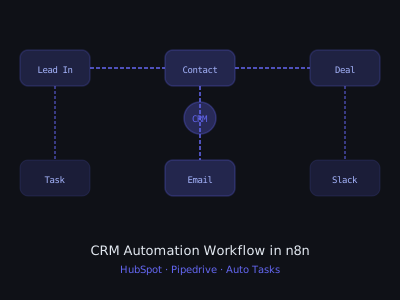
CRM automation is where AI agencies make the most recurring revenue. Every small and medium business has a CRM, or desperately needs one, and virtually none of them are using it effectively. Manual data entry, forgotten follow-ups, stale deal stages, and missed touchpoints cost these businesses real revenue every day. Building a CRM automation workflow in n8n solves all of these problems at once.
In this guide, we'll build a comprehensive CRM automation system that automatically captures and enriches contacts, moves deals through the pipeline based on behavior, triggers timely follow-ups, and keeps your team informed through Slack notifications. While we'll use HubSpot as the primary CRM in examples, the patterns apply equally to Pipedrive, GoHighLevel, Salesforce, and others.
If you haven't yet built your first n8n workflow, start with our beginner's guide to building AI agents with n8n first.
CRM Automation Impact on Client Business Metrics
The Four Core CRM Automation Workflows
A complete CRM automation system typically includes four interconnected workflows:
- Lead Capture & Enrichment: Automatically captures new contacts and enriches their data
- Deal Stage Automation: Moves deals through pipeline stages based on actions and time triggers
- Follow-Up Sequences: Triggers outreach at the right time based on deal stage and contact behavior
- Activity Logging: Automatically logs calls, emails, and meetings to the CRM without manual input
We'll build all four and show you how they connect. Each workflow is designed to be modular, you can deploy them individually or as a complete system depending on your client's needs and budget.
Workflow 1: Lead Capture and Enrichment
This workflow triggers whenever a new contact is created in HubSpot and automatically enriches their profile with company data. It is typically the first workflow you build for a client because it provides immediate, visible value, every new lead that enters the CRM is automatically enhanced with company information, social profiles, and a qualification score.
Trigger: HubSpot, New Contact
Use the HubSpot Trigger node with:
- Trigger On: Contact Created
This fires instantly when a new contact appears in HubSpot from any source, form submissions, manual entry, imported lists, or other integrations.
Company Enrichment via Clearbit
Use the HTTP Request node to call the Clearbit Enrichment API:
- URL:
https://person.clearbit.com/v2/combined/find?email={{$json.email}} - Method: GET
- Headers:
Authorization: Bearer {{$credentials.clearbitKey}}
Clearbit returns company name, size, industry, website, LinkedIn URL, and more. If Clearbit returns a 404 (email not found), handle this gracefully with an IF node that checks the response status code. Not every lead will have Clearbit data, your workflow needs to handle both enriched and non-enriched leads without breaking.
AI-Powered Lead Scoring
Pass the enriched data to an OpenAI node (gpt-4o-mini, temperature 0) with a lead scoring prompt:
Score this lead for an AI automation agency on a scale of 1-10.
Return JSON: {"score": number, "tier": "hot|warm|cold", "reasoning": "string"}

Lead data: {{JSON.stringify($json)}}
Using AI for lead scoring provides nuanced qualification that rule-based scoring cannot match. The model evaluates company size, industry fit, job title relevance, and technology signals simultaneously, producing a score with reasoning that helps your client's sales team prioritize their follow-up efforts.
Update HubSpot Contact
Use the HubSpot node to update the contact with enriched data:
- Resource: Contact
- Operation: Update
- Contact ID: From trigger data
- Properties to update: company, jobtitle, company_size, linkedin_url, lead_score (custom property), lead_tier (custom property)
Create Deal in Pipeline
For contacts above a certain lead score, automatically create a deal:
- HubSpot node: Resource = Deal, Operation = Create
- Deal Name:
{{$json.contact_name}} — {{$json.company_name}} - Pipeline Stage: "New Lead" stage ID
- Associated Contact: Contact ID from trigger
- Deal Value: Estimated based on company size from enrichment
Workflow 2: Deal Stage Automation
This workflow automatically advances and manages deals in your pipeline based on specific triggers and time-based rules. It is the workflow that eliminates the most common CRM failure mode: deals sitting in the wrong stage because nobody updated them.
Trigger Pattern: Webhook from HubSpot
Configure a HubSpot webhook to notify n8n when specific deal properties change. In HubSpot settings, add a webhook subscription for "Deal Property Change" events pointing to your n8n webhook URL.
The n8n Webhook node receives:
{
  "subscriptionType": "deal.propertyChange",
  "objectId": 12345,
  "propertyName": "dealstage",
  "propertyValue": "presentationscheduled"
}
Stage-Based Action Routing
Use a Switch node to route based on the new deal stage:
- New Lead: Enroll in initial contact sequence, assign owner, send Slack notification
- Meeting Scheduled: Send meeting prep email with agenda template, create calendar event via Google Calendar node
- Proposal Sent: Start proposal follow-up sequence, set 3-day reminder
- Negotiation: Alert sales manager via Slack, pause automated emails
- Closed Won: Trigger onboarding workflow, send congratulations email, update revenue tracking sheet
- Closed Lost: Log reason, add to re-engagement campaign in 90 days, request feedback via email
Stale Deal Detection (Scheduled Workflow)
Create a separate workflow that runs daily at 9am to catch deals that haven't moved in too long:
- Cron Trigger: Daily at 9:00 AM
- HubSpot node: Search deals where last modified > 7 days ago AND stage is not Closed
- Function node: Filter to only deals stale beyond their stage's SLA (New Lead: 2 days, In Contact: 5 days, Proposal: 7 days)
- Slack node: Send a daily digest of stale deals to the sales channel
- HubSpot node: Add an activity note to each stale deal: "Automated reminder: Deal has been inactive for X days"
CRM Automation Workflow Complexity and Build Time
Workflow 3: Behavior-Triggered Follow-Ups
This is the most sophisticated workflow, triggering follow-ups based on what prospects actually do, not just time elapsed. This is also the workflow that generates the most direct revenue impact for clients, because it ensures the right follow-up happens at exactly the right moment.
Email Open Tracking
Use HubSpot's native tracking or configure custom tracking pixels. When HubSpot webhooks fire for email events (open, click, reply), route them to n8n:
- Email Opened: If opened 3+ times without reply, flag as high-interest and notify sales team
- Link Clicked: Identify which link and trigger relevant follow-up (pricing page click triggers a pricing breakdown email)
- Proposal Viewed: If proposal doc viewed via tracked link, send "had a chance to review?" email within 2 hours
Website Visit Tracking
If the client uses HubSpot tracking code, configure website visit webhooks to n8n:
- Known contact visits pricing page, Slack alert to sales rep with context
- Known contact visits case studies page, Queue a relevant case study email
- Known contact hasn't visited in 30+ days, Re-engagement campaign trigger
Building the Follow-Up Logic
Use a combination of Wait nodes and IF nodes to implement the follow-up logic. Before each follow-up sends, check the deal stage and email engagement status:
// Function node: Check if follow-up should send
const dealStage = items[0].json.deal_stage;
const hasReplied = items[0].json.has_replied;
const daysSinceLastTouch = items[0].json.days_since_last_touch;

if (hasReplied || dealStage === 'closed_lost' || dealStage === 'closed_won') {
  return [{ json: { should_send: false, reason: 'deal_resolved' } }];
}

return [{ json: { should_send: true } }];
This guard logic is critical. Without it, you risk sending automated follow-ups to deals that have already closed or leads who have already replied, which damages your client's professionalism and your credibility as an automation builder.
Workflow 4: Automatic Activity Logging
One of the biggest CRM problems is that reps don't log their activities. This workflow does it automatically, which means the CRM data is always accurate and management can make informed decisions based on real activity data.
Gmail to HubSpot Sync
- Gmail Trigger node: Watch for sent emails (check sent folder)
- Function node: Extract recipient email addresses
- HubSpot node: Search for contact by email
- IF node: If contact found in HubSpot
- HubSpot node: Log email activity to contact timeline with subject, snippet, and timestamp
Calendar to HubSpot Sync
- Google Calendar Trigger node: Event ended
- Function node: Extract attendee emails from calendar event
- HubSpot node: Find contacts matching attendee emails
- HubSpot node: Log meeting activity to each contact's timeline
- OpenAI node: If the calendar event has notes/description, generate a meeting summary
- HubSpot node: Add meeting notes to the associated deal
Twilio Call Logging
If clients use Twilio for calls:
- Webhook node: Receive Twilio call status callback
- Twilio node: Fetch call recording URL
- HTTP Request node: Transcribe recording using Whisper API (
https://api.openai.com/v1/audio/transcriptions) - OpenAI node: Summarize transcript and extract action items
- HubSpot node: Log call activity with summary and transcript to contact and deal
Multi-CRM Pattern: When Clients Use Different CRMs
As an agency, your clients will use different CRMs. Structure your n8n workflows to be CRM-agnostic by abstracting the CRM interaction into a sub-workflow:
- Create a "CRM Actions" sub-workflow that accepts standardized inputs (action type, contact data, deal data)
- Use a Switch node inside the sub-workflow to route to the appropriate CRM node based on a
crm_typevariable - Main workflows call the sub-workflow, not the CRM directly
- Switching a client from HubSpot to Pipedrive only requires updating the sub-workflow, not all your main automations
This abstraction pattern saves significant time when onboarding new clients. Once your core automation logic is built, deploying to a new CRM platform takes hours instead of days. For more information on building scalable workflow architectures for multiple clients, see our AI automation agency guide. For comparing n8n against Make.com for CRM projects specifically, read our Make.com for AI agencies guide.
Testing and Quality Assurance
CRM automations touch live customer data, which means errors are highly visible and potentially damaging. Before deploying any CRM workflow to production, follow this testing protocol:
- Create test contacts: Use clearly labeled test records (e.g., "Test Contact - DO NOT DELETE") to trigger each workflow without affecting real data
- Test every branch: Walk through every Switch node path and every IF condition to verify correct behavior for each scenario
- Test error handling: Deliberately feed invalid data (missing email, empty fields, API errors) to verify the workflow handles failures gracefully
- Test timing: For workflows with Wait nodes, use shortened wait times during testing and verify the timing logic works before extending to production intervals
- Monitor for 48 hours: After deployment, actively monitor the workflow execution logs for the first 48 hours to catch edge cases that testing missed
What to Charge for CRM Automation
CRM automation projects vary significantly in scope. Typical pricing:
- Basic CRM automation (lead capture + follow-up): $1,500-$3,000 setup
- Full CRM automation suite (all 4 workflows): $4,000-$8,000 setup
- Ongoing maintenance and monitoring: $300-$600/month
- CRM migration + automation: $5,000-$12,000 (includes data migration from old system)
Position these projects around revenue impact, a well-automated CRM typically increases close rates significantly by ensuring no lead falls through the cracks and follow-ups happen on time every time. When your client's sales team can focus on selling instead of data entry, the ROI of your automation becomes obvious within the first month.
Get the Free Template
The complete n8n workflow template for this build is available for free inside our community. Download it and have this running for a client in under an hour.
Join Kingstone AI Operators, free, to access all templates.
Want n8n templates and training? Join 215+ AI agency owners. Join Kingstone AI Operators on Skool, free.
FAQ
Frequently Asked Questions
How do I build a CRM automation workflow in n8n?
Start by connecting n8n to your CRM using native nodes for HubSpot, Pipedrive, or Salesforce. Build four core workflows: lead capture and enrichment, deal stage automation, behavior-triggered follow-ups, and automatic activity logging. Use Webhook or CRM Trigger nodes to start each workflow, and chain together enrichment, scoring, routing, and notification nodes.
Can n8n automate HubSpot CRM workflows?
Yes, n8n has a native HubSpot node that supports contacts, deals, companies, tickets, and engagements. You can trigger workflows on contact creation, deal stage changes, and property updates. n8n can create contacts, update deal stages, log activities, and search records. Configure HubSpot webhooks to push events to n8n for real-time automation.
What CRM automations should I build for small business clients?
The highest-impact CRM automations for small businesses are automatic lead capture from website forms, AI-powered lead scoring, deal stage advancement based on email engagement, automated follow-up sequences, stale deal detection alerts, and activity logging from email and calendar. These eliminate manual data entry and ensure no lead falls through the cracks.
How do I connect n8n to Pipedrive or GoHighLevel?
n8n has a native Pipedrive node that supports contacts, deals, activities, and notes. For GoHighLevel, use the HTTP Request node with the GHL REST API. Set up OAuth or API key authentication in n8n credentials. Both CRMs support webhook events that can trigger n8n workflows for real-time automation.
How much should I charge for CRM automation as an AI agency?
Basic CRM automation including lead capture and follow-up typically sells for $1,500 to $3,000 as a setup fee. A full CRM automation suite covering all four workflow types commands $4,000 to $8,000. Ongoing maintenance runs $300 to $600 per month. CRM migration projects with automation can reach $5,000 to $12,000 depending on complexity.
How do I automate follow-up emails based on CRM deal stages in n8n?
Use a Webhook node to receive deal stage change events from your CRM. Add a Switch node to route based on the new stage. For each stage, configure appropriate follow-up actions using Wait nodes for timing and Gmail or SMTP nodes for sending. Always check deal status before sending to avoid emailing closed deals.
Can I build CRM automation for multiple clients using n8n templates?
Yes. Abstract your CRM interactions into a sub-workflow that accepts standardized inputs and uses a Switch node to route to the appropriate CRM node based on a crm_type variable. This way, your main automation workflows remain CRM-agnostic. Switching a client from HubSpot to Pipedrive only requires updating the sub-workflow configuration.
How do I automatically log calls and emails to HubSpot using n8n?
For emails, use a Gmail Trigger node to watch the sent folder, extract recipient emails, search HubSpot for matching contacts, and log the email as an activity. For calls, receive Twilio call status webhooks, transcribe recordings with the Whisper API, summarize with OpenAI, and log the call with summary to the contact timeline in HubSpot.
Program · 90 days
Client Accelerator bundles the demo software with live coaching.
A one-time $1,499 purchase, or 4 interest-free payments of $374.75. Includes Ciela AI with 150 personalized demos each month throughout the program, the 90-Day AI Client System, two live group coaching calls every week, sales and outreach templates, 200+ n8n workflow templates, and private Build With Adhiraj resources.
See what is includedCiela AI is the demo platform for AI agencies and AI consultants. It turns any prospect's website into a live, personalized AI demo (chat, voice, or missed-call text-back) you can send before the first call.
Start Client AcceleratorCiela AI pricingAgent builds by nicheAll articles
Community · Training
Join Build With Adhiraj free.
Build With Adhiraj is the free community for people building and growing AI service businesses. Learn alongside other operators as you package, demonstrate, sell, and deliver practical AI systems.
Join Build With Adhiraj free