
How to Build a Lead Generation Automation in n8n Step by Step
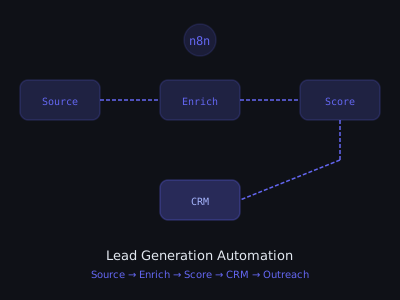
Building a lead generation automation in n8n can save your agency dozens of hours per week while filling your clients' pipelines with qualified prospects. A complete end-to-end lead generation system pulls leads from multiple sources, verifies and enriches contact data, scores leads with AI, pushes them into a CRM, and triggers automated outreach, all without a human touching a single record. This is one of the highest-value automations you can sell, and clients routinely pay $500 to $3,000 per month for systems like the one you are about to build.
This guide covers each step in enough detail that you can build this live as you read. For the broader context on how this workflow fits into a full agency service model, see our guide on starting an AI automation agency in 2026.
What You Will Build
By the end of this tutorial, your n8n workflow will pull leads from a source, enrich each lead with company data, score leads based on ICP fit using an OpenAI node, create contacts and deals in a CRM, trigger a cold outreach sequence, and notify your team in Slack when a high-score lead is added. This pipeline replaces a manual process that typically takes a sales team or VA 15 to 30 minutes per lead, compressed into 30 seconds of automated processing.
Time Saved Per Lead: Manual vs. Automated Processing
Step 1: Set Up Your n8n Instance
You need n8n running before building anything. You can use n8n Cloud, which requires no setup, or self-host on Railway, Render, or a DigitalOcean VPS for lower ongoing cost. For client work, self-hosted on a $6/month VPS gives you the best margin. For learning, n8n Cloud is fastest. Once logged in, click New Workflow and name it Lead Gen Automation v1.
A few workspace hygiene habits that save time as you scale: name every node descriptively rather than using the defaults, add sticky notes to explain complex branches, and save workflow versions before making significant changes. These habits become critical when you are managing 20+ client workflows and need to diagnose an issue at 10pm.
Step 2: Create the Trigger Node
Your workflow needs a trigger, the event that kicks everything off. You have three primary options depending on your client's setup. A Schedule Trigger runs daily at a set time, pulling from a Google Sheet. A Webhook Trigger fires instantly when a new lead arrives via a form or API. A Google Sheets Trigger watches for new rows in a spreadsheet.
For this tutorial, use the Schedule Trigger set to run every day at 8:00 AM. In the node settings, set Mode to Every Day, Hour to 8, and Minute to 0. For client deployments where speed-to-lead matters, real estate, home services, B2B SaaS, replace this with a Webhook Trigger so leads are processed the moment they arrive rather than the next morning.
Step 3: Pull Leads from Google Sheets
Add a Google Sheets node after the trigger. Connect your Google account via OAuth, then configure the Operation as Read Rows, point it to your leads sheet, and set a filter to only pull rows where Status equals "New." Your sheet should have columns for first_name, last_name, email, company, title, industry, and status.
The status column is critical for deduplication. After processing a lead, the workflow will update that row's status to "Processed." Without this, every daily run would reprocess the same leads. This is the most common beginner mistake in scheduled workflows, always build idempotency into your trigger source.
For clients generating leads from multiple sources, Facebook Lead Ads, website forms, LinkedIn campaigns, use separate sheets per source or separate tabs in the same sheet, and merge them with an n8n Merge node before the enrichment step. Tag each lead with a source field so you can track which channel produces the highest-quality leads after 30 to 60 days.
Step 4: Enrich Lead Data
Raw form data rarely includes everything you need for accurate scoring. Add an HTTP Request node to call Hunter.io for email verification. Configure it as a GET request to the Hunter.io email verifier endpoint with the lead email as a query parameter. This confirms whether the email address is valid before you spend resources processing the lead further.
Add a second HTTP Request node for Clearbit company enrichment. Pass the company domain extracted from the email address and get back employee count, industry, annual revenue, and technology stack. This data becomes the input for your AI scoring node and is what separates a high-quality lead qualification system from a simple form-to-CRM push.
Chain multiple enrichment nodes together and use a Merge node to combine all results into a single data object. Add a fallback path for leads where enrichment fails, store them with a status of "Manual Review" rather than dropping them. Enrichment APIs fail occasionally, and you do not want good leads disappearing from the pipeline silently.
Step 5: Score Leads with OpenAI
This is where AI transforms the workflow into something genuinely valuable. Add an OpenAI node configured as a Chat Completion using gpt-4o-mini. Write a system prompt that instructs the model to act as a B2B lead qualification expert and return a JSON object with a score from 1 to 10 and a reason. Base the score on company size, industry fit, job title seniority, and any signals of budget or urgency. Close the prompt with "Output only valid JSON. No markdown, no explanation."
In the user message, pass the enriched lead data: company name, employee count, industry, job title, stated problem or inquiry, and any context from the enrichment APIs. Keep the input focused, models perform better when they have relevant context rather than a dump of every field you collected. Aim for 300 to 500 characters of input per lead.
After the OpenAI node, add a Code node to parse the JSON response: const result = JSON.parse($input.first().json.message.content); return [{ json: { ...($input.first().json), lead_score: result.score, score_reason: result.reason } }];. The spread operator carries all upstream data forward. Wrap this in a try-catch and route parse errors to a Slack notification for manual review.
Step 6: Filter by Score
Add an IF node to split leads by quality. Set the condition to lead_score greater than or equal to 7. The true branch handles high-priority leads with immediate CRM entry and outreach. The false branch handles low-priority leads with CRM logging only. This split prevents your sales team from wasting time on unqualified leads while ensuring every strong lead gets immediate attention.
Calibrate the threshold for each client. A roofing company with a high close rate on any inquiry might use a threshold of 5. A B2B SaaS company with a strict ICP might use 8. After 30 days of data, review the score distribution and adjust. If 80% of leads are scoring above 7, your prompt is too generous. If 5% are, it is too strict.
Step 7: Create Contacts in HubSpot
On the true branch, add a HubSpot node. Configure it with the Contact resource and the Create or Update operation, which prevents duplicates by checking email before creating. Map all lead fields including the AI-generated lead score as a custom property. Then add a second HubSpot node to create a deal associated with the new contact, setting the deal name, stage, and any relevant custom fields.
Creating the deal immediately matters because it puts the lead into your client's pipeline view from day one. A contact with no associated deal is easy to ignore. A deal with a qualification score and a clear next step is something a sales rep can act on immediately without additional context.
For Pipedrive or GoHighLevel, the same pattern applies with different node configurations. For GoHighLevel, use the HTTP Request node with their API. Test your CRM integration with five to ten sample leads before activating the workflow for real traffic to catch field mapping errors before they affect production data.
Step 8: Trigger Email Outreach
Add an HTTP Request node to call your email sending platform API. For Instantly.ai, send a POST request to their lead add endpoint with the campaign ID, lead email, first name, and the AI-generated score reason as the personalization field. This adds the lead to an active cold email campaign with the AI personalization line already populated, the sales rep only needs to review and approve, not write from scratch.
For clients who send lower volumes or need more manual control, use the Gmail node to send a personalized first-touch email directly from n8n. Use the AI-generated score_reason as the opening context for the email. A first email that references something specific about the prospect's situation outperforms a generic template by a wide margin in every channel. For the full cold email infrastructure setup, see our guide on setting up cold email infrastructure that avoids spam.
Step 9: Send Slack Notification
Add a Slack node to notify the team about high-score leads. Configure it to post to a #hot-leads channel with a message that includes the lead name, company, score, and the AI-generated reason. For teams that live in Slack, a well-formatted notification with all the context they need to take action immediately is the difference between a lead being followed up in 5 minutes versus 5 hours.
Include a direct link to the CRM contact record in the notification. Clicking from Slack to the CRM record with one tap is a workflow that gets used. Clicking from Slack, opening a browser, navigating to the CRM, and searching for the contact is a workflow that gets skipped. Friction kills follow-up speed.
Step 10: Update Lead Status and Build Reporting
Add a Google Sheets node to mark each processed lead with a status of "Processed" and log the CRM contact ID. This prevents reprocessing on the next run and creates an audit trail. Add columns for lead_score, crm_contact_id, outreach_triggered, and processed_at timestamp.
Build a separate reporting workflow that runs at the end of each week and generates a summary: total leads processed, average score, score distribution breakdown, CRM contacts created, outreach emails triggered, and leads flagged for manual review. Send this summary to your client via email or Slack. This reporting layer is what converts a one-time setup into a recurring retainer, clients who see weekly data on their pipeline activity rarely cancel.
Lead Gen Automation: CRM Node Compatibility
Error Handling and Reliability
Production lead gen workflows need robust error handling before they go live for any client. Configure a separate error workflow in n8n settings that fires whenever the main workflow fails, sending a Slack alert with the error message and failed node name. Enable retry with three attempts and a five-second delay on every HTTP Request node. Add an IF node after the Google Sheets pull that validates required fields, email must exist and must contain an @ symbol. Route invalid rows to a dead-letter sheet labeled "Failed Leads" rather than dropping them.
If you are processing hundreds of leads per batch, add a Wait node between enrichment API calls to avoid hitting rate limits. Hunter.io free tier has a 25-request monthly limit. Clearbit rate limits at 20 requests per second. A one-second Wait node handles both without impacting workflow speed meaningfully.
Scaling to Multiple Clients
Save your base workflow as a template. For each new client, duplicate it and swap out the credentials, CRM configuration, lead source sheet, and scoring criteria. Store each client's API keys in n8n's credential manager, never hardcode them in the workflow. Use a clear naming format like Client Name, Lead Gen v1 so you can manage dozens of workflows without confusion. Extract the AI scoring logic into a sub-workflow that multiple client workflows can call.
With a mature template, onboarding a new client takes under two hours rather than a full build. That efficiency is what makes this service productizable. For a complete breakdown of platform options, see our comparison of n8n for AI agencies. For pricing and positioning this as a productized service, see our guide on how to productize AI automation services into packages.
"Ciela AI helps AI agency owners publish expert content consistently, so prospects find them through search and LinkedIn before they ever send a cold email. If you want inbound leads from content without spending hours writing, get started at ciela.ai."
Program · 90 days
Client Accelerator bundles the demo software with live coaching.
A one-time $1,499 purchase, or 4 interest-free payments of $374.75. Includes Ciela AI with 150 personalized demos each month throughout the program, the 90-Day AI Client System, two live group coaching calls every week, sales and outreach templates, 200+ n8n workflow templates, and private Build With Adhiraj resources.
See what is includedCiela AI is the demo platform for AI agencies and AI consultants. It turns any prospect's website into a live, personalized AI demo (chat, voice, or missed-call text-back) you can send before the first call.
Start Client AcceleratorCiela AI pricingAgent builds by nicheAll articles
Community · Training
Join Build With Adhiraj free.
Build With Adhiraj is the free community for people building and growing AI service businesses. Learn alongside other operators as you package, demonstrate, sell, and deliver practical AI systems.
Join Build With Adhiraj free