
How to Build a Slack Notification Bot for Client Updates Using n8n
Most small business teams waste time switching between CRM dashboards, email inboxes, and spreadsheets just to find out what happened since yesterday. A Slack notification bot built in n8n solves this by pushing the right information to the right people automatically. New lead comes in? The sales channel knows instantly. Deal closes? The whole team sees it. Task overdue? The assigned rep gets a private nudge. This is one of the stickiest automations you can deliver for clients because they experience the value every single day.
This guide walks through the complete build: creating a Slack app, wiring it to n8n, designing channel architecture, formatting rich messages with Block Kit, and packaging the whole system as a sellable service for your AI agency.
Why Slack Notification Bots Are a High-Retention Add-On
Slack bots create a daily visible reminder that your automation system is working. Every morning when the digest fires, the client sees your bot's name in their workspace. That's retention on autopilot. Beyond the psychological stickiness, the operational value is significant. Teams that get instant lead alerts respond faster, and speed-to-lead is one of the strongest predictors of conversion. Contacting a lead within five minutes of submission dramatically increases the odds of qualifying that lead compared to waiting thirty minutes.
For your agency, the pitch is clean: "Every time a lead comes in, your team knows immediately — in Slack, not buried in an email thread." That's something a business owner can see and feel the value of on day one.
Slack Notification Impact on Client Operations
Step 1: Create a Slack App and Connect to n8n
Before connecting n8n, you need a Slack App in your client's workspace. Go to api.slack.com/apps and create a new app from scratch. Name it something branded like "ClientName Bot" so it shows up professionally as the sender. Under OAuth and Permissions, add Bot Token Scopes for chat:write, chat:write.public, channels:read, users:read, and users:read.email. Install the app to the workspace and copy the Bot User OAuth Token that starts with xoxb-.
In n8n, go to Settings, then Credentials, and add a Slack API credential with that token. Name it "ClientName Slack Bot" so you stay organized as you scale to multiple clients. Test the connection immediately by creating a temporary Slack node, pointing it at a test channel, and sending a test message. If it delivers, you are good to proceed.
One important detail: add the users:read.email scope during initial setup. You will need it later for looking up a rep's Slack ID from their email address when routing direct messages. It is easier to add during setup than to reinstall the app later.
Step 2: Design Your Channel Architecture
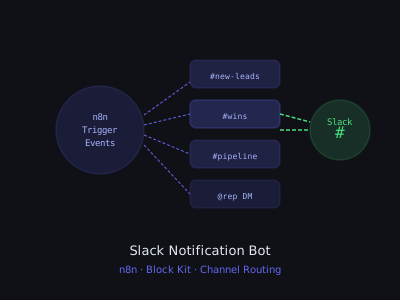
Before building any workflow, map out the channel structure with your client. A chaotic Slack setup defeats the purpose of organized notifications. The structure that works for a typical small business with a sales team includes a #new-leads channel for every inbound lead, a #hot-leads channel for high-score leads only, a #wins channel for deal celebrations, a #pipeline channel for deal stage changes, a #daily-digest channel for morning summaries, and direct messages for overdue task reminders sent to individual reps.
This separation matters because notification fatigue is a real failure mode. If everything goes to one channel, people mute it within a week. Separate channels with clear signal-to-noise ratios keep notifications actionable and the team engaged.
Channel Routing Logic
Use a Switch node at the top of your notification workflow to route events to the correct channel. New leads with a score below eight go to #new-leads. Hot leads with a score of eight or above go to #hot-leads. Deal won events go to #wins. Deal lost and stage change events go to #pipeline. Overdue tasks route as direct messages to the assigned rep. For DMs, you need the rep's Slack user ID, not their email. Add a Slack Users Lookup by Email operation before the DM node, and cache the results in a Google Sheet so you are not hitting the Slack API repeatedly for the same five reps.
Step 3: Build Rich Notifications with Block Kit
Plain text notifications get ignored. Slack's Block Kit lets you build visually structured messages with headers, two-column layouts, buttons, and contextual metadata. Use the Slack Block Kit Builder at api.slack.com/block-kit-builder to design messages visually, then paste the JSON into your n8n Slack node.
For lead notifications, use a Header block with the notification type, a Section block with fields for name, company, lead score, and source in a two-column layout, and an Actions block with a "View in CRM" button. The fields block type renders as a clean two-column layout that is much easier to scan than a long text block. For hot leads, add a different emoji and a more urgent tone to the header.
Build the blocks dynamically in a Code node before the Slack send node. This keeps your Slack node clean and lets you add conditional logic like showing the score field only if a score exists, or using different headers for hot versus standard leads.
Step 4: Build the Daily Digest
The daily digest is a separate n8n workflow running on a Schedule Trigger at 8:30 AM on weekdays. It assembles a comprehensive snapshot by pulling deals opened this week, deals closed this week, new leads from the past 24 hours broken down by source, and tasks overdue as of today. A Code node assembles all the data into a structured object, and a single rich Slack message goes to #daily-digest.
An important detail: add a conditional check in your Code node. If there are zero new leads, zero overdue tasks, and zero closed deals, skip the digest entirely. An empty "nothing happened" digest trains people to ignore the channel.
Notification Types by Client Value
Step 5: Add Interactive Buttons
Interactive buttons move this from a notification system to an action system. A rep can mark a task complete directly from Slack without opening the CRM. To set this up, enable Interactivity in your Slack App settings and point the Request URL to a new n8n webhook endpoint. When a user clicks a button, Slack posts the action to your webhook within milliseconds.
In your interaction handler workflow, parse the action ID to determine which button was clicked, then route with a Switch node. A "Mark Complete" action updates the task in the CRM and posts a confirmation. A "Snooze 24h" action pushes the next alert date forward. Always respond to the interaction webhook within three seconds by adding a Respond to Webhook node immediately after the trigger that returns a 200 OK, then continue processing asynchronously.
Error Handling and Reliability
Slack notifications are only valuable if they are reliable. An alert that fires 80 percent of the time trains people to distrust the system. Add a Wait node with a one-second delay between messages when processing batches to respect Slack's rate limits. Configure an Error Workflow in n8n that sends you a Slack DM when any node fails, so you know about problems before your client does. Store sent notification IDs in a Google Sheet for deduplication, and log every notification with type, timestamp, channel, and recipient for a complete audit trail.
Common Mistakes to Avoid
Sending everything to one channel is the most common failure. Separate channels with clear purposes from day one. Not filtering for noise is the second mistake — if a lead record gets updated ten times in the CRM, you will fire ten notifications unless you add a debounce condition. Plain text messages are nearly as bad as no notification at all, so invest thirty minutes in Block Kit formatting. Hardcoding channel names causes maintenance headaches when clients rename channels, so store channel names in a configuration sheet or environment variables.
Packaging and Pricing for Clients
This system works best as an add-on to any automation package. A basic alerts tier with new lead and deal notifications across two channels can be built in two hours and sold for around $300 setup. A full notification suite adding daily digests, overdue task DMs, and Block Kit formatting takes five to six hours and sells for around $600. An interactive system tier with buttons, CRM write-back, and full error handling takes eight to ten hours and sells for around $900. Monthly maintenance at $100 to $150 covers monitoring, error handling, and adding new notification types as the client's needs evolve.
The monthly maintenance is easy to justify because Slack notification systems naturally expand over time. Clients always come back with "can we also get notified when..." and that is billable work under the maintenance agreement.
Slack Bot Pricing Tiers (Setup Cost vs Build Time)
Program · 90 days
Client Accelerator bundles the demo software with live coaching.
A one-time $1,499 purchase, or 4 interest-free payments of $374.75. Includes Ciela AI with 150 personalized demos each month throughout the program, the 90-Day AI Client System, two live group coaching calls every week, sales and outreach templates, 200+ n8n workflow templates, and private Build With Adhiraj resources.
See what is includedCiela AI is the demo platform for AI agencies and AI consultants. It turns any prospect's website into a live, personalized AI demo (chat, voice, or missed-call text-back) you can send before the first call.
Start Client AcceleratorCiela AI pricingAgent builds by nicheAll articles
Community · Training
Join Build With Adhiraj free.
Build With Adhiraj is the free community for people building and growing AI service businesses. Learn alongside other operators as you package, demonstrate, sell, and deliver practical AI systems.
Join Build With Adhiraj free