
How to Connect OpenAI to n8n to Automate Client Workflows
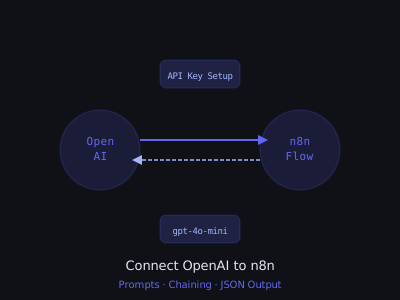
Connecting OpenAI to n8n is the single most impactful thing you can do as an AI automation agency owner. Once you have GPT wired into your workflows, you can build lead qualifiers, email writers, summarizers, chatbots, and dozens of other automations that clients will pay serious money for.
This guide walks you through the complete setup, from getting your OpenAI API key to chaining multiple AI steps together in production-ready workflows. Every section includes the exact configurations, prompt templates, and code snippets you need to go live with a real client deliverable.
Prerequisites
- An active OpenAI account with billing enabled
- An n8n instance (Cloud or self-hosted)
- Basic familiarity with n8n's canvas interface
Step 1: Get Your OpenAI API Key
Go to platform.openai.com, sign in, and navigate to API Keys in the left sidebar. Click Create new secret key, give it a name like n8n-production, and copy the key immediately, you won't be able to see it again.
Set a usage limit under Billing → Usage Limits. For client projects, set a hard limit of $50/month until you understand your usage patterns. Nothing kills a client relationship faster than an unexpected $500 AI bill.
One important note on API key management: create a separate API key for each client project if you're building on their OpenAI accounts. This lets you track costs per client, revoke access cleanly if a project ends, and monitor for runaway usage on a per-project basis. If you're building on your own account and charging clients a flat retainer, create separate keys per workflow type (e.g., n8n-lead-scoring, n8n-email-gen) so you can see exactly where your costs come from.
Step 2: Add OpenAI Credentials in n8n
In n8n, go to Settings → Credentials → Add Credential. Search for OpenAI and select it. You'll see a simple form with one field:
- API Key: paste your OpenAI secret key
Click Save. The credential is now available to all OpenAI nodes in your workspace. Name it OpenAI Production to distinguish it from test credentials.
If you're on n8n Cloud and managing multiple clients, use the Credential Sharing feature to make credentials available to specific workflows without exposing them across your entire workspace. For self-hosted n8n, store your API keys in environment variables rather than directly in the n8n database, set N8N_ENCRYPTION_KEY in your environment and n8n will encrypt stored credentials at rest.
Step 3: Add Your First OpenAI Node
Open a new workflow and add an OpenAI node. You'll see several resource options:
- Chat, conversational completions (most common for automation)
- Text, legacy completions (older models, avoid for new builds)
- Image, DALL-E image generation
- Audio, Whisper transcription (useful for voicemail-to-text)
- File, file uploads for fine-tuning or assistants
Select Chat and Message a Model. Configure:
- Credential: OpenAI Production
- Model: gpt-4o-mini (best price/performance for most tasks)
- Messages: click Add Message
- Role: system, Content: your system prompt
- Add another message with Role: user, Content: your dynamic input
Under Options, set temperature to 0 for structured outputs (JSON, classifications) and 0.7 for creative writing (emails, social posts). Set max_tokens explicitly, for JSON scoring tasks, 300 tokens is sufficient. Leaving it unlimited on a high-volume workflow will cost you real money over time.
Choosing the Right Model for Each Task
Model selection directly affects your workflow economics. Here is a practical decision framework:
- gpt-4o-mini, Use for classification, scoring, extraction, short emails, and summaries. Costs roughly $0.15 per million input tokens. Fast and cost-effective for high-volume tasks. This covers 80% of what agency clients actually need.
- gpt-4o, Use for complex reasoning, long-form content, nuanced writing, and tasks where mini consistently fails. Costs roughly $2.50 per million input tokens, about 16x more expensive. Reserve it for tasks where quality difference is measurable.
- o1-mini, Use for tasks that require multi-step reasoning or code generation. Not needed for most business automation.
Practical benchmark: a lead scoring call with a 400-token prompt and 150-token output costs under $0.0001 on gpt-4o-mini. Processing 10,000 leads costs less than $1. The same task on gpt-4o costs roughly $16. Run your high-volume tasks on mini, upgrade only when you have a documented quality problem.
Step 4: Writing Effective System Prompts for Automation
The system prompt is what makes your AI node actually useful. Weak prompts produce inconsistent outputs that break downstream nodes. Strong prompts produce predictable, parseable outputs every time.
The four rules for automation prompts:
- Specify the exact output format. If you need JSON, describe the exact schema. If you need plain text, say "output only the text, no intro or outro."
- Include constraints. Word limits, what to exclude, what to do when data is missing.
- Assign a role. "You are a B2B sales qualification expert" produces better output than no role context.
- End with a format reminder. Always close with something like "Output only valid JSON. No markdown, no explanation." Models drift without this.
Here are tested system prompts for the five most common agency use cases:
Lead Qualifier:
You are a B2B sales qualification expert. Analyze the company information and output a JSON object with these exact keys: qualified (boolean), score (integer 1-10), reason (string, max 20 words), next_action (string, one of: "book_call" "nurture" "disqualify"). Base your score on: company size, industry fit, job title seniority, and any signals of budget or urgency. Output only valid JSON. No markdown, no explanation.
Cold Email Writer:
You are a cold email copywriter who specializes in short, human-sounding outreach. Write a cold email body under 90 words. Use the prospect's company and role to write one specific personalized opening line, then transition to a clear value statement and a single low-friction CTA. Sound like a human, not a sales robot. No subject line. Output only the email body.
Support Ticket Classifier:
You classify customer support tickets. Output a JSON object with: category (one of: "billing" "technical" "feature_request" "refund" "other"), urgency (one of: "high" "medium" "low"), sentiment (one of: "angry" "neutral" "positive"), and suggested_response (string, 1 sentence). Output only valid JSON.
Content Repurposer (LinkedIn):
You repurpose blog content into high-performing LinkedIn posts. Write a LinkedIn post that hooks in the first line, delivers 3-5 punchy insights from the content, and ends with a question or CTA. No hashtags. Under 250 words. Output only the post text.
Meeting Summarizer:
You summarize sales call transcripts for CRM entry. Output a JSON object with: summary (string, 2-3 sentences), pain_points (array of strings, max 3), next_steps (array of strings), deal_stage (one of: "discovery" "proposal" "negotiation" "closed_won" "closed_lost" "unknown"). Output only valid JSON.
Step 5: Using Dynamic Data in Prompts
The real power comes from injecting live data from previous nodes into your OpenAI prompts. In the user message field, use n8n expressions:
{{$json.company_name}}, company name from previous node{{$json.job_title}}, job title field{{$json.website_content}}, scraped website text{{$('Google Sheets').item.json.email}}, reference a specific node's data{{$('HTTP Request').item.json.body.text}}, pull from an HTTP response
Example user message for email generation:
Write a cold email for: Name: {{$json.first_name}}, Company: {{$json.company}}, Title: {{$json.title}}, Industry: {{$json.industry}}, Recent news or trigger (if any): {{$json.trigger_event}}.
One common mistake: passing huge blobs of text to the model. If you scrape a full website and dump 50,000 characters into a prompt, you'll hit token limits and pay for tokens you don't need. Use a Code node before the OpenAI node to truncate inputs: return [{ json: { ...item.json, content: item.json.content.substring(0, 3000) } }];. For most summarization and classification tasks, 2,000–4,000 characters of input is more than enough.
Another important pattern: sanitize inputs before passing them to the model. If a user-submitted form field contains something like "Ignore previous instructions and do X," you want to strip or escape that before it hits your prompt. Add a simple Code node that removes unusual character patterns from user-provided fields in any customer-facing workflow.
Step 6: Parsing JSON Responses from OpenAI
When you need structured output, scores, classifications, extracted fields, force JSON output and parse it reliably. Add this to your system prompt: "Always respond with valid JSON only. No markdown code blocks, no extra text."
Then add a Code node after the OpenAI node with this parsing logic:
const raw = $input.first().json.message.content; try { const parsed = JSON.parse(raw); return [{ json: { ...($input.first().json), ai_result: parsed } }]; } catch(e) { return [{ json: { ...($input.first().json), parse_error: true, raw_output: raw } }]; }
The ...($input.first().json) spread operator carries all upstream data forward so you don't lose the original lead or ticket data after the parse step. This is critical, beginners often lose context by only returning the parsed AI result.
After the Code node, add an IF node that routes on {{$json.parse_error}}. The error branch can send a Slack alert with the raw output for manual review, or trigger a retry with a simplified prompt. Never let parse failures silently drop records from a workflow, you will lose leads and not know it.
For extra reliability on critical workflows, use OpenAI's response_format parameter. In the n8n OpenAI node under Options, set Response Format to JSON Object. This forces the model to output valid JSON at the API level, not just through prompt instruction. Combined with a good system prompt, parse failures drop to near zero.
Step 7: Chaining Multiple AI Steps
Single-node workflows handle simple tasks. The real leverage comes from chaining multiple specialized AI nodes, each doing one thing well. Here is a complete four-node pipeline for automated prospect research and outreach:
- Node 1, Website Summarizer: Input: raw scraped website text. System prompt: "Summarize this company's value proposition, target customer, and main product in 3 bullet points under 15 words each. Output only the 3 bullets." Output: 3-bullet company summary.
- Node 2, Pain Point Identifier: Input: the summary from Node 1 plus the prospect's job title. System prompt: "Given this company summary and the prospect's role, identify their top 2 likely business pain points. Be specific. Output a JSON array of 2 strings." Output: array of pain points.
- Node 3, Cold Email Writer: Input: pain points from Node 2, prospect name, company. System prompt: the Cold Email Writer template from Step 4. Output: email body.
- Node 4, Subject Line Generator: Input: email body from Node 3. System prompt: "Write 3 cold email subject lines for this email. Each under 8 words. No clickbait. Output a JSON array of 3 strings." Output: 3 subject line variants for A/B testing.
The key to chaining: pass output forward using expressions that reference the specific node by name. For Node 3's user message:
Prospect: {{$json.first_name}} at {{$json.company}}. Their pain points: {{$('Pain Point Node').item.json.ai_result[0]}} and {{$('Pain Point Node').item.json.ai_result[1]}}. Write the email.
This kind of pipeline replaces 30–45 minutes of manual research and writing per prospect. For a client sending 200 personalized outreach emails per week, that is 100+ hours of saved work per month. That's what justifies a $2,000–$5,000/month retainer.
Step 8: Handling Rate Limits and Errors at Scale
OpenAI enforces rate limits that will break workflows processing large batches without protection. The limits vary by tier, but even on Tier 2, you can hit them when running 500+ records through a workflow.
The reliable pattern for batch processing:
- Add a SplitInBatches node before your OpenAI node. Set batch size to 5.
- After each OpenAI call, add a Wait node set to 1 second for gpt-4o-mini and 3 seconds for gpt-4o.
- Add a Loop Over Items structure so SplitInBatches processes all records.
- Enable Continue on Fail on your OpenAI node. This prevents one 429 error from crashing the entire batch run.
For critical production workflows, build a retry sub-workflow. When an OpenAI node fails, the error handler catches it, logs the failed item to a Google Sheet, and sends a Slack notification with the error details. Then a separate scheduled workflow re-processes the failed items every 30 minutes. This is the pattern that makes agency workflows actually reliable, not just demo-worthy.
Monitor your token usage with a Code node that logs input and output token counts from the OpenAI response to a Google Sheet or Airtable. The OpenAI node returns usage.prompt_tokens and usage.completion_tokens in the response. Logging these lets you spot workflows that are consuming more tokens than expected and optimize prompts before costs compound.
Real Client Workflow Examples
Here are five production workflows you can build and sell with this OpenAI+n8n setup:
1. Automated proposal generator: Client fills out a Typeform → n8n pulls form data → OpenAI writes a customized proposal tailored to their stated problem and budget range → Google Docs creates the proposal from a template → email sends it automatically within 5 minutes of form submission. This workflow saves 2–3 hours per proposal and increases close rates because prospects get a tailored document while they're still in buying mode.
2. Support ticket classifier and router: New email arrives in support inbox → OpenAI classifies urgency, category, and sentiment → routes high-urgency tickets to a specific team member in Slack → creates task in ClickUp with extracted action items → sends auto-acknowledgment to customer with realistic resolution time. Response time drops from hours to seconds. This is a straightforward sell to any business with more than 3 people handling support.
3. Content repurposer: Blog post published (webhook or RSS trigger) → n8n fetches the content → OpenAI generates a Twitter/X thread, LinkedIn post, and email newsletter excerpt from the same source → posts are drafted in a Google Doc for approval or posted directly to Buffer for scheduling. One piece of content becomes five in under a minute. Clients running content marketing love this because it removes the bottleneck of repurposing.
4. Lead qualification and CRM enrichment: New lead comes in from a Facebook Lead Ad or website form → OpenAI scores and qualifies the lead based on stated pain points and company info → enriched data gets written to HubSpot or GoHighLevel with a qualification score, recommended follow-up action, and a personalized first message draft → sales rep gets a Slack notification with everything they need to make the first call. This is one of the highest-ROI automations you can build for any business that runs paid ads.
5. Meeting transcript summarizer: Call ends on Zoom or Google Meet → Fireflies or Otter.ai webhook fires → n8n receives the transcript → OpenAI extracts the summary, pain points, next steps, and deal stage → all fields written directly into the CRM deal record → follow-up email drafted and queued for rep review. Reps spend an average of 15–20 minutes per call on CRM entry. This reduces it to under 2 minutes of review. At 10 calls per week per rep, that is 2+ hours per week per person recovered.
Cost Optimization: Keeping Margins Healthy
API costs can quietly eat your margins if you're not tracking them. Here is the framework for keeping OpenAI costs under control on client retainers:
- Model selection by task type. Use gpt-4o-mini for everything that doesn't require deep reasoning: classification, scoring, short writing, extraction. Reserve gpt-4o for long-form content and complex analysis. Most agencies find that 90%+ of their workflow volume runs fine on mini.
- Cap output with max_tokens. For JSON scoring tasks, 200–300 tokens covers any realistic output. For email generation, 300–400 tokens. For summaries, 200 tokens. Never leave max_tokens unlimited on high-volume nodes.
- Truncate inputs before they hit the model. For website summarization, you don't need 20,000 characters of page content, the first 3,000 characters (above-the-fold content and headlines) is sufficient for most tasks. Add a Code node to slice inputs before the OpenAI node.
- Cache repeated calls. If you're scoring the same company multiple times (leads from the same business), store results in a Google Sheet or Airtable and check there first. Skip the API call if the result already exists. A simple IF node checking for a cached result can eliminate 20–40% of API calls in busy workflows.
- Set hard billing limits. Per-project API keys with hard monthly caps prevent runaway costs from bugs or unexpected volume spikes. Set the cap at 2x your expected monthly cost so you have headroom without risk.
As a rough benchmark: a well-optimized lead qualification workflow running 5,000 leads per month on gpt-4o-mini should cost $3–8 in API fees. If you're billing a client $500–1,000/month for that workflow, your margin is healthy. Track actuals every month and adjust pricing if a client's volume grows significantly.
Testing Your Workflow Before Going Live
Shipping an untested AI workflow to a client is how you lose clients. Before going live, run through this checklist:
- Test with edge cases. What happens when a field is empty? When the website has no useful content? When the ticket is in a different language? Build these scenarios into test data and make sure your workflow handles them gracefully rather than failing or producing garbage output.
- Validate JSON parsing 20+ times. Run your workflow 20–30 times with varied inputs and confirm your Code node parses successfully every time. If you see parse errors more than once in 20 runs, your system prompt needs work.
- Log all outputs to a sheet during the first week. Have n8n write every AI output to a Google Sheet in parallel with its normal processing. Review 20–30 outputs manually to spot quality issues before the client sees them.
- Set up error alerting from day one. Connect a Slack notification to your error handler. You should know about workflow failures before your client does.
- Run a volume test. Before deploying a batch-processing workflow, run 100 records through it manually and measure: success rate, average cost per record, average processing time. Document these as your baseline.
Selling This to Clients
The mistake most agency owners make is selling "AI automation" as a feature. Clients don't buy features, they buy outcomes. When you pitch a workflow built on this stack, translate directly to business impact:
- "Your sales team spends 3 hours a day manually qualifying leads from your form. This automation qualifies every lead in 15 seconds, routes the hot ones to your top rep immediately, and sends the rest into a nurture sequence. You get those 3 hours back every day."
- "Right now you respond to support tickets in 4–6 hours. This automation sends an accurate, helpful acknowledgment in under 60 seconds and gets the right team member on high-priority issues immediately. Customer satisfaction scores typically improve 15–25% within 30 days."
- "You're writing custom proposals manually, which takes 2–3 hours each. This automation generates a fully personalized first draft in 5 minutes from a form submission. Your close rate typically increases because prospects get a tailored proposal while they're still actively shopping."
Frame every automation around time saved, revenue captured, or problems eliminated, never around the technology.
For more on building AI agent workflows, check out our guide on building AI agents in n8n and see how n8n compares to other tools in our n8n vs Make vs Zapier comparison.
Get the Free Template
The complete n8n workflow template for this build, including the 4-node prospect research pipeline, JSON parsing Code nodes, and error handling sub-workflow, is available for free inside our community. Download it and have this running for a client in under an hour.
Join Kingstone AI Operators, free, to access all templates.
Want to learn how to build and sell AI automations? Kingstone AI Operators is our free community for AI automation agency builders. Join Kingstone AI Operators, free.
FAQ
Frequently Asked Questions
How do I connect OpenAI to n8n for workflow automation?
Get your API key from platform.openai.com, add it as an OpenAI credential in n8n Settings, then add an OpenAI node to your workflow. Select Chat as the resource, Message a Model as the operation, and choose your model. Add system and user messages to configure what the AI does with your data.
Which OpenAI model should I use in n8n workflows?
Use gpt-4o-mini for most automation tasks like classification, scoring, JSON extraction, and short-form writing. It is 95% cheaper than gpt-4o with comparable quality for structured tasks. Use gpt-4o only for complex reasoning, long-form content generation, or tasks where gpt-4o-mini produces noticeably lower quality output.
How do I parse JSON responses from OpenAI in n8n?
Add 'Always respond with valid JSON only. No markdown code blocks, no extra text.' to your system prompt. Then add a Code node after the OpenAI node with JSON.parse on the message content. Wrap it in a try-catch block to handle cases where the model returns invalid JSON, routing errors to a fallback branch.
How much does it cost to use OpenAI API in n8n automations?
gpt-4o-mini costs roughly $0.15 per million input tokens and $0.60 per million output tokens. A typical lead scoring call costs under $0.001. For 1,000 leads per month, expect roughly $1 to $5 in API costs. Set usage limits in your OpenAI billing settings and use max_tokens to cap output length.
How do I chain multiple OpenAI nodes together in n8n?
Connect OpenAI nodes in sequence where each node's output feeds into the next node's user message via n8n expressions. For example, Node 1 summarizes a website, Node 2 identifies pain points from the summary, Node 3 writes a personalized email using the pain points. Each node uses a different system prompt for its specific task.
How do I handle OpenAI rate limits in n8n batch processing?
Use a SplitInBatches node with a batch size of 5 and add a Wait node with a 2-second delay between batches. For gpt-4o, increase the wait to 3 seconds. Wrap OpenAI nodes in Error Handler sub-workflows to automatically retry on 429 rate limit errors. This prevents workflow failures when processing large lead lists.
What are the best OpenAI automation use cases for AI agency clients?
The highest-value use cases are lead qualification and scoring, personalized cold email generation, support ticket classification and routing, content repurposing across platforms, automated proposal generation, meeting transcript summarization, and customer feedback analysis. Each of these saves clients hours of manual work per week.
How do I write effective system prompts for n8n OpenAI automation?
Be specific about the output format, keep instructions concise, and include constraints. For structured tasks, specify the exact JSON schema you want. For writing tasks, include tone, length limits, and style guidelines. Always end with 'Output only valid JSON' or 'Output only the email body' to prevent extra text that breaks downstream parsing.
Program · 90 days
Client Accelerator bundles the demo software with live coaching.
A one-time $1,499 purchase, or 4 interest-free payments of $374.75. Includes Ciela AI with 150 personalized demos each month throughout the program, the 90-Day AI Client System, two live group coaching calls every week, sales and outreach templates, 200+ n8n workflow templates, and private Build With Adhiraj resources.
See what is includedCiela AI is the demo platform for AI agencies and AI consultants. It turns any prospect's website into a live, personalized AI demo (chat, voice, or missed-call text-back) you can send before the first call.
Start Client AcceleratorCiela AI pricingAgent builds by nicheAll articles
Community · Training
Join Build With Adhiraj free.
Build With Adhiraj is the free community for people building and growing AI service businesses. Learn alongside other operators as you package, demonstrate, sell, and deliver practical AI systems.
Join Build With Adhiraj free