
How to Create an Automated Follow-Up Sequence in Make.com From Scratch
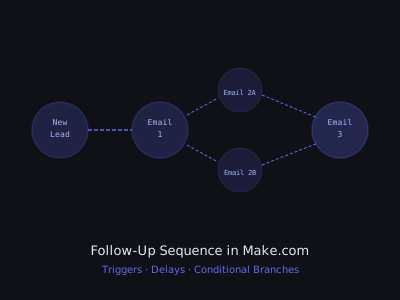
A well-structured follow-up sequence is the difference between a 5 percent close rate and a 25 percent close rate for most small businesses. Research consistently shows that 80 percent of sales require five or more follow-ups, yet 44 percent of salespeople give up after just one. That gap is your client's lost revenue, and your opportunity to build something that makes them a lot of money. In this guide you will build a complete automated multi-step follow-up sequence in Make.com, including conditional branching based on prospect behavior, AI personalization, and reply detection. If you want a head start on the actual copy, our follow-up sequence generator drafts the full cadence for you before you wire it into Make.
Why Follow-Up Sequences Are the Highest-ROI Automation You Can Build
Before diving into Make.com, understand why this service sells itself. A roofing contractor had 340 leads sit in a spreadsheet over six months. His sales rep followed up with about 30 percent of them once and then moved on. After deploying a 5-step automated sequence, he recovered 22 closed jobs from that dead list at an average ticket of $9,800. That is $215,600 in recovered revenue from a system that cost $1,200 to build. The math on follow-up automation is always compelling. Walk your client through the calculation before you pitch the price: leads per month times close rate times average deal value times percentage lost to slow follow-up equals recoverable revenue.
Follow-Up Sequence Performance Benchmarks
How Make.com Handles Delays: The Core Concept
Make.com does not have a native "wait" or pause-execution node like n8n does. Instead, multi-day sequences use a scheduler plus date comparison approach. After sending each email, you store the next action date as a future date in Google Sheets or Airtable. A separate daily scenario checks for records where that date has arrived and processes them. This is the Make.com-native pattern for all follow-up sequences. Once you understand this, the rest of the build is straightforward.
You will build two interconnected scenarios: the Enrollment Scenario that triggers when a new lead enters and sends Email 1, and the Follow-Up Processor that runs daily and sends subsequent touches based on stored dates. A third Reply Detector scenario runs every 30 minutes and stops the sequence when a prospect responds.
Step 1: Set Up Your Lead Tracker in Google Sheets
Create a Google Sheet with these columns: id, first name, last name, email, company, industry, entered sequence at, status, email 1 sent at, email 2 sent at, email 3 sent at, next action, next action date, replied, and opened email 1. The status column tracks where each lead sits: Email 1 Sent, Email 2 Sent, Sequence Complete, Replied. The next action date column is what the daily processor checks. The replied column is what stops the sequence from sending to people who have already responded.
One formatting detail that prevents a common bug: store all dates in YYYY-MM-DD format, not MM/DD/YYYY. Google Sheets string comparison breaks when the format is reversed, causing leads to process out of order. Set the column format to plain text and always write dates as 2026-04-01.
Step 2: Create the Enrollment Scenario and Send Email 1
In Make.com, create a new scenario with a Google Sheets Watch New Rows trigger. Set it to monitor your leads sheet and process up to 10 new rows per execution. After the trigger, add a Gmail Send an Email module. Keep Email 1 short, four to six sentences. A proven structure: one sentence acknowledging something specific about their business, one sentence naming the problem they likely have, one sentence on what you do about it, and a soft call to action asking for 15 minutes. After the send, add a Google Sheets Update a Row module to log the send time, set status to Email 1 Sent, set next action date to today plus two days, and set next action to send email 2 check.
Before your email send, insert an OpenAI Create a Completion module to personalize the opening line. Feed it the lead's name, company, and industry with a prompt asking for one sentence that feels personal and specific to their business type. Prepend the AI output to your template body. This adds roughly $0.001 per email and meaningfully increases reply rates.
Step 3: Build the Follow-Up Processor Scenario
Create a second scenario called Follow-Up Sequence Processor. Set the trigger to Scheduling, every day at 9:00 AM. Add a Google Sheets Search Rows module filtered to records where next action date is less than or equal to today and status is not Sequence Complete or Replied. Add an Iterator module after the search so Make.com processes each lead one at a time through the rest of the flow.
Add a Router module after the iterator with three routes: route one handles leads with next action equal to send email 2 check, route two handles send email 3, and route three handles mark complete. Each route starts with a filter that checks the replied field is not true. This prevents sending to people who have already responded, which is the most common complaint businesses have about automated sequences.
Step 4: Send Email 2 With Conditional Branching
In route one, add a nested router to split based on whether Email 1 was opened. If you are using Brevo for sending, add an HTTP Request module to check their events API for open events on the lead's email. If opened, send Email 2A, a value-add message with a case study or specific result from a similar business. If not opened, send Email 2B, an extremely short re-engagement message, two to three sentences, with a completely different subject line.
After whichever email is sent, update the sheet: set email 2 sent at to now, next action date to today plus three days, and next action to send email 3. For Email 2A, the body should deliver real value, a specific number, a short client story, a common mistake in their industry. This is a value touchpoint, not a pitch. Email 2B should be under 60 words. Its only goal is to resurface the conversation.
Step 5: Send the Break-Up Email and Complete the Sequence
Route two sends Email 3, the break-up email. This is your last touch and typically generates the highest reply rate of the entire sequence. The psychology is loss aversion: people respond when they believe access is being removed. A good break-up email gets 8 to 15 percent reply rate from contacts who ignored everything else. Keep it under 60 words. Acknowledge you have reached out a few times, offer one last chance to connect, and say you will stop reaching out. After the send, set next action to mark complete and next action date to tomorrow.
Route three handles the mark complete step. Update status to Sequence Complete No Response, then add a Slack Send a Message module alerting the sales team. Include the contact name, company, and a note to consider LinkedIn outreach as the next step. If the client does not use Slack, write the contact to a Manual Outreach Needed tab in the same Google Sheet instead.
Pricing Tiers for This Service
Step 6: Build the Reply Detector Scenario
Create a third scenario that runs every 30 minutes. Use Gmail Watch Emails triggered on new inbox messages. After detecting a reply, use Google Sheets Search Rows to find the matching contact by email address. If a match is found with status Active, update their row to set replied to true and status to Replied. Then send a Slack notification to the sales team. Add an OpenAI module to classify the reply as INTERESTED, NOT INTERESTED, QUESTION, or OUT OF OFFICE. Route INTERESTED replies to send a calendar booking link immediately. Parse out-of-office replies for the return date and update next action date accordingly.
The out-of-office handling is a small detail most people skip. If someone is OOO for two weeks and your sequence sends three more emails while they are gone, you have burned that contact. Detect the return date from the OOO body using a GPT prompt and reschedule the next touch for one day after they return.
Pricing and Selling This to Clients
A basic 3-step sequence sells for $800 to $1,200 setup. Adding AI personalization, reply detection, and CRM integration brings it to $1,500 to $2,500. A multi-channel build with email plus SMS, three separate sequences for different lead types, and a monthly performance dashboard runs $3,000 to $4,500. Add monthly maintenance retainers of $200 to $400 for all tiers. Sequences need ongoing attention, subject lines stop converting after 60 days, and clients need new templates as their market evolves.
Lead with the revenue recovery calculation. If a plumbing company gets 80 leads per month and closes 10 percent, moving to 25 percent close rate adds 12 jobs per month. At $400 average ticket, that is $4,800 per month in new revenue from a $1,500 system. For a comparison of Make.com against n8n for follow-up sequences, see our detailed Make.com sequence guide and the n8n beginners guide.
Program · 90 days
Client Accelerator bundles the demo software with live coaching.
A one-time $1,499 purchase, or 4 interest-free payments of $374.75. Includes Ciela AI with 150 personalized demos each month throughout the program, the 90-Day AI Client System, two live group coaching calls every week, sales and outreach templates, 200+ n8n workflow templates, and private Build With Adhiraj resources.
See what is includedCiela AI is the demo platform for AI agencies and AI consultants. It turns any prospect's website into a live, personalized AI demo (chat, voice, or missed-call text-back) you can send before the first call.
Start Client AcceleratorCiela AI pricingAgent builds by nicheAll articles
Community · Training
Join Build With Adhiraj free.
Build With Adhiraj is the free community for people building and growing AI service businesses. Learn alongside other operators as you package, demonstrate, sell, and deliver practical AI systems.
Join Build With Adhiraj free