
How to Use Webhooks in n8n to Trigger Automated Workflows
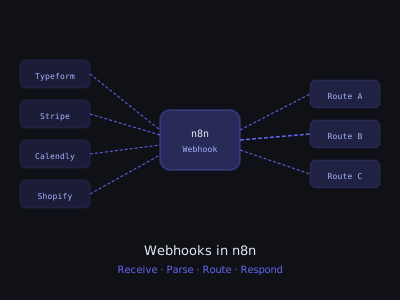
Webhooks are the backbone of real-time automation. Instead of polling for changes every few minutes, webhooks push data to your workflow the moment something happens, a form submission, a new payment, a CRM update, or a Slack message.
Mastering webhooks in n8n is one of the most important skills for any automation agency. Almost every client workflow you build will use them. This guide covers everything from basic setup to advanced routing, security, and error-proofing, with real payload examples and code you can copy directly.
What is a Webhook?
A webhook is an HTTP callback, when Event A happens in System X, System X sends an HTTP POST request to a URL you control. Your n8n workflow lives at that URL and executes every time it receives a request. Unlike polling (asking "did anything happen?" every 5 minutes), webhooks are instant and efficient.
Think of it this way: polling is checking your mailbox every hour. Webhooks are the mail carrier ringing your doorbell the moment a package arrives.
Common webhook use cases in client work:
- Typeform or Jotform submission → triggers lead qualification and CRM entry
- Stripe payment completed → triggers client onboarding sequence
- Calendly booking → triggers reminder SMS and prep email
- GitHub push → triggers deployment notification to Slack
- Shopify order placed → triggers fulfillment and customer notification
- GoHighLevel form → triggers AI follow-up sequence
- WooCommerce checkout → triggers post-purchase upsell workflow
Every one of these replaces manual work someone on the client's team was doing. That's why clients pay for them.
Step 1: Add a Webhook Node in n8n
In any n8n workflow, click the + button to add a node and search for Webhook. This is a trigger node, it starts your workflow. It's always the first node in any webhook-triggered flow.
When you add a Webhook node, n8n generates two URLs:
- Test URL:
https://your-n8n.com/webhook-test/[path], use during development - Production URL:
https://your-n8n.com/webhook/[path], use when workflow is activated
The test URL works only when you manually click "Listen for Test Event". The production URL only works when the workflow is activated via the toggle in the top right. This distinction trips up beginners constantly, if your webhook isn't firing in production, check whether the workflow is actually active.
Step 2: Configure the Webhook Node
Key settings in the Webhook node:
- HTTP Method: POST for most webhooks. GET is used by some lightweight notification services. PUT and PATCH are rare but supported.
- Path: the URL slug, keep it descriptive and specific:
new-lead,stripe-payment,calendly-booking. Avoid generic paths likewebhook1, when you have 20 workflows running, you will lose track. - Authentication: Header Auth, Basic Auth, or None. Always use authentication in production.
- Response Mode: "Immediately" returns 200 right away before the workflow finishes (fastest, best for high-volume); "Last Node" waits and returns whatever your final node outputs (required for Slack slash commands, chatbots, and any service that needs a response payload).
A practical naming convention that keeps things clean: prefix each path with the client name. So a dental client's lead form becomes brightsmile-new-lead and their payment webhook becomes brightsmile-stripe-payment. When you manage 10+ clients on the same n8n instance, you will thank yourself.
Step 3: Authentication, Never Skip This
A completely open webhook URL is a liability. Anyone who guesses or discovers your URL can fire your workflow, spam your client's CRM, trigger email sequences to fake leads, or run up API costs. Use authentication on every production webhook.
Header Auth (recommended for most cases):
- In the Webhook node, set Authentication: Header Auth
- Header Name: x-api-key
- Header Value: generate a strong random string at randomkeygen.com (256-bit WEP key format works well)
- Store this key in your n8n Credentials as an environment variable, never hardcode it
- The calling service must include
x-api-key: [your-value]in every request header
HMAC Signature Verification (Stripe, Shopify, GitHub, and similar):
These platforms sign every payload with a secret key using HMAC-SHA256. They include the signature in a request header. You verify the signature in n8n to confirm the request is genuine. Add a Code node immediately after your Webhook node:
const crypto = require('crypto'); const rawBody = $input.first().binary?.data || JSON.stringify($input.first().json); const receivedSig = $input.first().headers['x-hub-signature-256']; const expectedSig = 'sha256=' + crypto.createHmac('sha256', 'YOUR_WEBHOOK_SECRET').update(rawBody).digest('hex'); if (receivedSig !== expectedSig) { throw new Error('Invalid signature — request rejected'); } return $input.all();
For Stripe specifically, note that they send stripe-signature as the header name, not x-hub-signature-256. Check each service's documentation for the correct header name and hashing algorithm.
IP Allowlisting (defense in depth): Some services publish a list of IP addresses their webhooks originate from. For example, Stripe's webhook IPs are listed in their documentation. If your n8n instance is behind a reverse proxy like Nginx, you can add IP-based restrictions as an additional layer.
Step 4: Receiving and Parsing Webhook Payloads
After the Webhook node executes, your payload is available via $json. The structure varies significantly between services, and parsing it correctly is where most beginners get stuck.
Typeform payload structure:
{ "event_id": "abc123" "event_type": "form_response" "form_response": { "form_id": "xyz" "submitted_at": "2026-03-27T10:00:00Z" "answers": [{ "field": { "ref": "full_name" } "text": "John Smith" } { "field": { "ref": "email" } "email": "john@example.com" } { "field": { "ref": "phone" } "phone_number": "+15551234567" }] } }
The nested answers array is awkward to work with downstream. Add a Code node immediately after the Webhook to flatten it:
const answers = $input.first().json.form_response.answers; const data = {}; answers.forEach(a => { const key = a.field.ref; data[key] = a.text || a.email || a.phone_number || a.number || a.boolean || a.choice?.label || ''; }); return [{ json: { ...data, submitted_at: $input.first().json.form_response.submitted_at } }];
After this node, every subsequent node gets clean fields like $json.full_name, $json.email, $json.phone instead of digging through arrays.
Stripe payment_intent.succeeded payload, key fields:
$json.data.object.amount, payment amount in cents$json.data.object.currency, currency code$json.data.object.customer, Stripe customer ID$json.data.object.metadata, any custom fields you attached at charge creation$json.data.object.receipt_email, customer email
Always check the $json.type field on Stripe webhooks before processing, Stripe sends many event types and you only want to act on specific ones.
Calendly invitee.created payload, key fields:
$json.payload.name, invitee full name$json.payload.email, invitee email$json.payload.scheduled_event.start_time, meeting start (ISO 8601)$json.payload.scheduled_event.location.join_url, Zoom/Meet link if applicable$json.payload.questions_and_answers, array of intake form answers
Step 5: Routing Multiple Event Types with Switch Node
Many services, Stripe, Shopify, GitHub, HubSpot, send multiple event types to the same webhook URL. You need to route each to the right workflow branch. A single Switch node handles this cleanly.
Stripe multi-event routing setup:
- Switch node value:
{{$json.type}} - Case payment_intent.succeeded → new customer onboarding branch
- Case invoice.payment_failed → dunning email + Slack alert branch
- Case customer.subscription.cancelled → churn response + win-back sequence
- Case customer.subscription.updated → update CRM tier branch
- Default → log to Google Sheet and stop (never process unknown events silently)
Shopify multi-event routing setup:
Shopify uses separate webhooks per topic, so you configure multiple n8n webhook paths (shopify-order-created, shopify-order-fulfilled, shopify-refund-created) and each feeds into its own workflow. This is cleaner than one URL trying to handle everything.
GitHub multi-event routing:
GitHub sends the event type in a header: $input.first().headers['x-github-event']. Route on this value rather than a body field. Common events: push, pull_request, issues, release.
Step 6: Returning Custom Responses
Some services require a specific HTTP response, not just a 200, but an actual JSON payload. If your workflow doesn't return the right response in time, the service may retry repeatedly or mark the webhook as failed.
Set Response Mode: Last Node in the Webhook node, then add a Respond to Webhook node at the end of your workflow with:
- Response Code: 200 (or 204 for GitHub which expects no content)
- Response Headers:
Content-Type: application/json - Response Body: your JSON payload
Slack slash command response (must reply within 3 seconds):
{ "response_type": "ephemeral" "text": "{{$json.ai_response}}" }
Use response_type: "in_channel" if you want the response visible to everyone in the channel rather than just the person who ran the command.
Chatbot or AI assistant response:
If you are building a chatbot that receives messages via webhook and must reply inline, the Respond to Webhook node lets you return the AI-generated reply as the HTTP response body. The calling service (a website widget, a custom app) receives it synchronously and displays it to the user.
Important timeout consideration: If Response Mode is "Last Node" and your workflow involves slow steps (calling OpenAI, querying a database), the external service may timeout waiting for a response. For anything that might take more than 5 seconds, use Response Mode "Immediately" (return 200 right away), then trigger a separate follow-up action (send an email or Slack message with the result rather than returning it synchronously).
Step 7: Testing Webhooks During Development
Proper testing methodology saves hours of debugging later. Here is the full workflow:
- Click Listen for Test Event in the Webhook node, n8n is now waiting
- Send a test payload using curl, Postman, or the service's own test button
- n8n captures the full payload and displays the parsed structure
- Use this real data to build all downstream nodes, expression references will autocomplete correctly
- Click Execute Workflow to run the entire flow with your captured test data
- Iterate until the full flow works end-to-end
- Activate the workflow and switch the external service to the production URL
curl command for quick webhook testing:
curl -X POST https://your-n8n.com/webhook-test/new-lead \
  -H "Content-Type: application/json" \
  -H "x-api-key: your-secret-key" \
  -d '{"name":"Test User" "email":"test@example.com" "phone":"+15551234567" "source":"google-ads"}'
Testing with Postman: Create a collection named after the client. Add one request per webhook. Include all required headers and a realistic sample body. Save these, you will use them every time you update the workflow, and they double as documentation for the client.
Using ngrok for local development: If you run n8n locally during development, external services cannot reach localhost. Install ngrok and run ngrok http 5678 to get a public URL that tunnels to your local n8n instance. The URL changes each session on the free plan, so switch to n8n Cloud or a cheap VPS once you move past initial development.
Step 8: Connecting Common Services to n8n
Typeform: Settings → Integrations → Webhooks → Add Webhook → paste your n8n URL → Send test to verify → Save. Select "form_response" as the event. Typeform includes a secret in the typeform-signature header if you enable payload verification.
Calendly: Integrations → Webhooks → Create Webhook → paste URL → select events: invitee.created (booking confirmed) and invitee.canceled (cancellation). Calendly v2 webhooks include a signing key in the calendly-webhook-signature header.
Stripe: Developers → Webhooks → Add Endpoint → paste URL → select events. Start with just the events you need, subscribing to all events creates noise. Enable "Receive all events" only if you want a full audit log. Stripe signs payloads with stripe-signature. Always verify this in production.
Shopify: Settings → Notifications → Webhooks → Create Webhook → select topic (Orders/Create, Orders/Paid, Refunds/Create, etc.) → paste URL → Shopify API version: latest → Save. Shopify signs with x-shopify-hmac-sha256.
GitHub: Repository Settings → Webhooks → Add Webhook → paste URL → Content Type: application/json → Secret: add a strong secret → Select individual events. The most useful events for agency work: push (code deployed), pull_request (PR opened/merged), issues (issue created/closed).
GoHighLevel: Settings → Integrations → Webhooks → paste your n8n URL → select triggers (contact created, appointment booked, form submitted, etc.). GHL is the CRM most used by the clients you will work with, know this integration well.
WooCommerce: WooCommerce → Settings → Advanced → Webhooks → Add Webhook → Topic: Order Created → Delivery URL: your n8n URL → Secret: optional but recommended → Save. WooCommerce signs payloads with x-wc-webhook-signature.
Step 9: Error Handling and Resilience
Webhooks fail silently if n8n is not running, throws an error, or returns a 5xx status. Most services retry failed webhooks on a backoff schedule (Stripe retries for up to 3 days, GitHub retries for up to 3 hours). But you cannot rely on retries alone.
Hosting recommendations for production:
- n8n Cloud, zero infrastructure management, managed uptime, built-in scaling. Best for agencies starting out or managing client workflows.
- Railway or Render, cheap VPS hosting ($5-$20/month), good uptime, auto-restart if n8n crashes. Reasonable middle ground.
- DigitalOcean Droplet with PM2, most control, requires manual setup but very stable. Use PM2 to ensure n8n restarts automatically after crashes.
- Never run production webhooks on localhost, if your laptop goes to sleep, your client's leads stop flowing.
Error Workflow setup: In n8n Settings → Workflows → Error Workflow, point to a dedicated error-handling workflow. This workflow fires whenever any active workflow throws an uncaught error. Build it to send a Slack message or email with the workflow name, error message, and timestamp. You will catch failures before clients notice them.
Payload logging for replay: The most important resilience pattern, add a Google Sheets or Airtable node as the very first step after your Webhook node to log the raw incoming payload. Set it to append a new row with the timestamp, event type, and full payload as a JSON string. If a downstream step fails (API is down, data format changed, bug in a Code node), you have every incoming payload stored and can replay it manually once the issue is fixed. This has saved dozens of leads for clients.
Idempotency: Some services send duplicate webhooks. Stripe, for example, may send the same event twice if they did not receive a 200 from your first response. Guard against this by checking whether you have already processed an event ID before taking action. Store processed event IDs in a Google Sheet or database and skip duplicates.
Example deduplication check in a Code node:
const eventId = $input.first().json.id; // Check your processed events sheet via a previous Google Sheets node const alreadyProcessed = $('Check Processed Events').all().some(row => row.json.event_id === eventId); if (alreadyProcessed) { return []; // Stop execution } return $input.all();
Correct HTTP status codes matter: Return 200 for success, 400 for malformed or invalid payloads (wrong format, missing required fields), and 500 for internal errors. Returning 200 on errors tricks the service into thinking delivery succeeded and it will not retry. Use the Respond to Webhook node with the correct code.
Advanced Pattern: Webhook Queuing for High Volume
If a client's service sends a large burst of webhooks (a sale event, a product launch, a flash sale) and your downstream APIs have rate limits, n8n can get backed up. The solution is to decouple receiving from processing.
Pattern: webhook → queue → processor
- Webhook node receives the event and immediately returns 200
- A Code node appends the payload to a Google Sheet queue
- A separate scheduled workflow runs every minute, reads unprocessed rows from the sheet, processes them one at a time, and marks each row as done
This pattern handles bursts gracefully, respects rate limits, and gives you a built-in audit log. For higher volume, replace the Google Sheet with Redis via n8n's Redis nodes, or use a proper message queue like RabbitMQ.
Real Business Workflow: Complete Client Journey
Here is how a complete service business client workflow ties together five different webhooks into one coherent customer journey:
- Typeform webhook → client fills out lead form → n8n creates contact in HubSpot, scores lead with AI, sends personalized follow-up email within 5 minutes
- Calendly webhook (invitee.created) → discovery call booked → n8n sends confirmation email with prep questions, creates task in ClickUp for the sales team, adds event to internal Google Calendar
- Calendly webhook (invitee.canceled) → booking canceled → n8n sends reschedule link, updates HubSpot deal stage, notifies sales team on Slack
- Stripe webhook (payment_intent.succeeded) → payment received → n8n sends onboarding email sequence, creates project in ClickUp, fires Slack notification to team, updates HubSpot deal to Closed Won
- Stripe webhook (invoice.payment_failed) → recurring payment fails → n8n starts dunning sequence (email day 1, SMS day 3, personal email day 7), alerts account manager
This is a workflow that replaces 3-4 hours of manual admin per week and would easily justify a $500-$1,500/month retainer. The entire thing took about 4 hours to build. Webhooks are what make it possible.
For more on building complete end-to-end client workflows, see our n8n AI agent beginner's guide and our breakdown of n8n vs Make vs Zapier for agency workflows.
Get the Free Template
The complete n8n workflow template for this build is available for free inside our community. Download it and have this running for a client in under an hour.
Join Kingstone AI Operators, free, to access all templates.
Want to learn how to build and sell AI automations? Kingstone AI Operators is our free community for AI automation agency builders. Join Kingstone AI Operators, free.
FAQ
Frequently Asked Questions
How do I set up a webhook in n8n to trigger a workflow?
Add a Webhook node to your n8n workflow canvas. Configure the HTTP method (usually POST), set a descriptive path like /new-lead or /stripe-payment, choose your authentication method, and set the response mode. n8n generates a test URL for development and a production URL for live use. Activate the workflow to enable the production URL.
What is the difference between n8n test and production webhook URLs?
The test URL only works when you click Listen for Test Event in the n8n editor, allowing you to capture sample data during development. The production URL only works when the workflow is activated via the toggle in the top right. Always use the production URL when configuring external services for live automation.
How do I secure webhooks in n8n to prevent unauthorized access?
Use Header Auth by setting an x-api-key header with a strong random string. For services like Stripe, Shopify, and GitHub that sign payloads with HMAC, verify the signature in a Code node using the crypto library. Never leave production webhooks without authentication since anyone who discovers your URL can trigger the workflow.
How do I handle multiple webhook event types in n8n?
Use a Switch node after the Webhook node to route by event type. Set the value to the event type field from the payload and create separate cases for each event. For example, Stripe sends payment_intent.succeeded, invoice.payment_failed, and customer.subscription.cancelled to the same URL, and each can route to a different workflow branch.
Can I connect Typeform, Calendly, and Stripe to n8n via webhooks?
Yes. Typeform sends webhooks from Settings, Integrations, Webhooks. Calendly sends from Integrations, Webhooks with events like invitee.created. Stripe sends from Developers, Webhooks. Shopify and GitHub also support webhooks natively. Paste your n8n webhook URL into each service and select the events you want to receive.
How do I test webhooks in n8n during development?
Click Listen for Test Event in the Webhook node, then send a test request using curl, Postman, or the external service's test button. n8n captures the payload and shows you the parsed data. Build the rest of your workflow using this real data structure, then click Execute Workflow to run the full flow with the captured test data.
What happens if my n8n webhook fails or the server is down?
Webhook calls fail silently if n8n is not running. To build resilience, use n8n Cloud or reliable hosting, enable Error Workflows in n8n settings to get Slack alerts on failures, log all incoming webhook data to a Google Sheet before processing so you can replay failed events, and return appropriate HTTP status codes.
How do I return a custom response from an n8n webhook?
Set Response Mode to Last Node in the Webhook node configuration. Add a Respond to Webhook node at the end of your workflow with the desired response code, headers, and body. This is required for services like Slack slash commands that expect a JSON response or GitHub webhooks that need specific status codes.
Program · 90 days
Client Accelerator bundles the demo software with live coaching.
A one-time $1,499 purchase, or 4 interest-free payments of $374.75. Includes Ciela AI with 150 personalized demos each month throughout the program, the 90-Day AI Client System, two live group coaching calls every week, sales and outreach templates, 200+ n8n workflow templates, and private Build With Adhiraj resources.
See what is includedCiela AI is the demo platform for AI agencies and AI consultants. It turns any prospect's website into a live, personalized AI demo (chat, voice, or missed-call text-back) you can send before the first call.
Start Client AcceleratorCiela AI pricingAgent builds by nicheAll articles
Community · Training
Join Build With Adhiraj free.
Build With Adhiraj is the free community for people building and growing AI service businesses. Learn alongside other operators as you package, demonstrate, sell, and deliver practical AI systems.
Join Build With Adhiraj free