
How to Trigger n8n From a Vapi End-of-Call Report (Complete Setup)
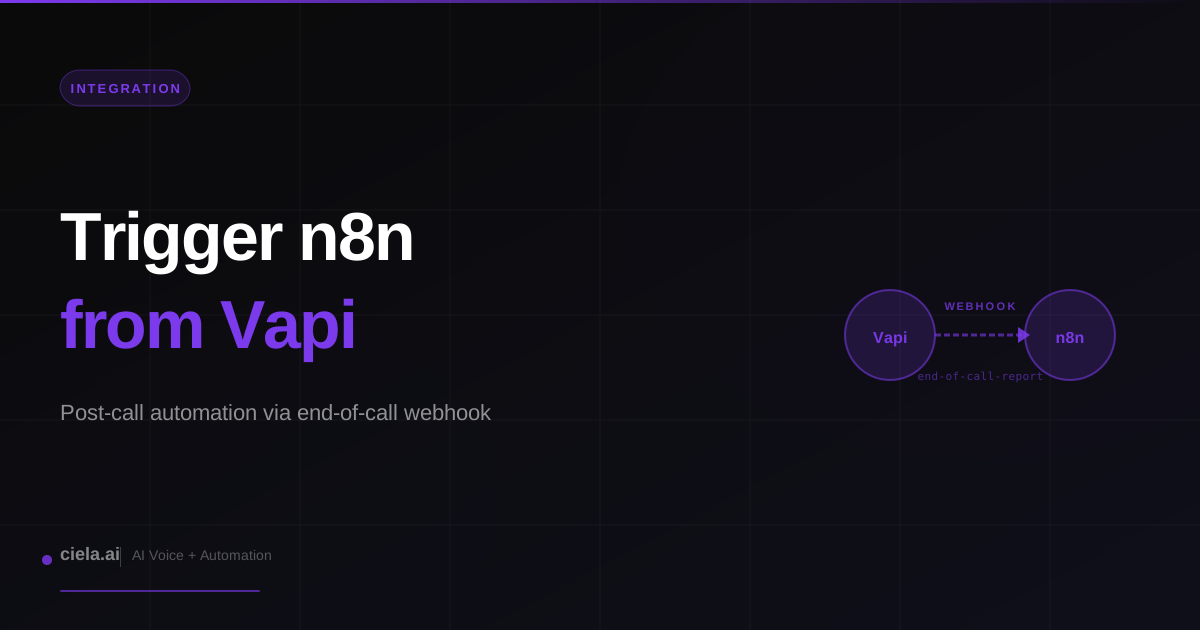
Vapi handles the voice call. n8n handles everything after. The glue is the end-of-call report webhook, which Vapi fires the moment a call ends with the full transcript, structured data, recording URL, and metadata. Pointing that webhook at an n8n workflow lets you run any post-call automation you want: CRM updates, Slack summaries, follow-up emails, appointment booking, call scoring. This is the single most useful Vapi+n8n integration and it takes about 15 minutes to set up correctly.
What the End-of-Call Report Contains
Vapi sends a POST request to your webhook URL with a JSON body containing: the full transcript (every turn, with role and content), the recording URL (MP3), the structured data extracted via your analysis prompt (if configured), call metadata (duration, start/end timestamps, ended reason), cost breakdown (LLM, STT, TTS), and the assistant ID. This payload has everything you need for any downstream automation.
Step 1: Create the n8n Webhook
In n8n, create a new workflow. Add a Webhook node as the trigger. Set the HTTP method to POST, path to something descriptive like vapi-end-of-call. Save and activate the workflow. Copy the production webhook URL (not the test URL, which only works while the editor is open).
If you are in the n8n editor, the test URL is useful for initial development. Switch to the production URL once things are working so the webhook survives editor closes.
Step 2: Configure the Vapi Assistant
In your Vapi assistant's server settings, set the Server URL to your n8n webhook URL. This is the URL Vapi will POST to at the end of each call and for other server events.
Subscribe specifically to the end-of-call-report event. Other events (transcript, function-call, hang) will also fire to the same URL if subscribed; filter them inside n8n if you only want to handle end-of-call. Check the message type field on the incoming webhook payload.
Step 3: Parse the Payload in n8n
After the Webhook node, add a Set node or Code node to pull out the fields you need. The main pieces: $json.message.type (should equal "end-of-call-report"), $json.message.call.id (call ID for tracking), $json.message.transcript (full transcript), $json.message.recordingUrl (MP3 link), $json.message.analysis (structured extracted data if configured), $json.message.endedReason (why the call ended).
The exact path depends on your Vapi version. Log the full payload on first setup so you can see the structure. A single console log or a row appended to a tracking sheet reveals the shape faster than reading docs.
Most Common Post-Call Automations
Step 4: Filter by Event Type
If your Vapi server URL receives multiple event types (end-of-call-report, transcript, function-call), add an IF node at the start of your n8n workflow that only continues if $json.message.type === 'end-of-call-report'. Otherwise the workflow runs on every event and does the wrong thing on most.
Step 5: Extract Structured Data
Vapi can run an analysis prompt against the transcript at the end of each call and return structured JSON. If you have this configured in your assistant (recommended), the data lives at $json.message.analysis. This is gold for automation: instead of parsing the raw transcript, you get clean fields like { intent, customer_name, email, booking_time, objection_reason }.
If you have not configured analysis, you can still extract fields from the raw transcript by passing it to an OpenAI node in n8n with a structured output schema. Slower and more expensive than Vapi's built-in analysis, but works.
Example Pattern: CRM Update
Webhook → IF (filter for end-of-call-report) → Set (extract phone, intent, notes from analysis) → HubSpot Search Contact (by phone) → IF (contact found) → HubSpot Update Contact (add call notes). Add an else branch for "contact not found" that creates a new contact.
Total workflow: 6 nodes. Runtime per call: under 2 seconds. Handles every post-call CRM update automatically.
Example Pattern: Slack Summary
Webhook → IF → Set (build summary text with caller name, duration, outcome, transcript snippet) → Slack Send Message. Format the Slack message with blocks for readability: header with outcome, body with summary, link to recording URL, thread with full transcript.
This gives the team real-time visibility into what the voice agent is doing without anyone having to listen to calls. Review the summaries to spot patterns, catch issues, and identify coaching opportunities.
Example Pattern: Conditional Follow-Up Email
Webhook → IF (end-of-call-report) → Set (extract intent, email) → IF (intent === 'interested') → Gmail Send Email (follow-up with link to booking page). Different branches for different intents: interested gets booking link, objection gets soft nurture email, not-interested gets nothing.
Personalize the email with fields from the analysis (their stated goal, their concern). Personalized follow-ups triggered immediately after the call convert significantly better than delayed generic ones.
Setup Time per Automation Pattern
Handling the Recording URL
$json.message.recordingUrl is an MP3 link. You can download it with an HTTP Request node (keep as binary), upload to S3 or Drive for long-term storage, or attach to a CRM record. Note: Vapi recordings expire after a period; download and store them if you need long-term retention (especially for HIPAA-scoped compliance).
Idempotency: Handling Duplicate Webhooks
Webhooks can fire more than once (network retries, platform retries on non-200 responses). Make your workflow idempotent. Use the call ID ($json.message.call.id) as a dedup key: before writing to a CRM or sending an email, check if this call ID has been processed. If yes, exit early.
A lightweight dedup table (Postgres, Airtable, Redis) with the call ID as the primary key is enough. Insert-with-conflict-ignore handles the race cleanly.
Handling Large Transcripts
Long calls produce large transcript payloads. n8n defaults are usually fine, but if you hit payload size limits, truncate the transcript to the last N turns or summarize before passing to downstream nodes. For LLM analysis, truncate to the most relevant portion (often the last third of the call, which contains commitments and next steps).
Verifying Webhook Delivery
Set up a basic monitor: at the start of your n8n workflow, append a row to a "calls received" log. In Vapi, note the expected call count from your call logs. Periodically compare. If the counts diverge, webhooks are being dropped (usually due to n8n being down, a 500 response from a downstream node, or a firewall blocking Vapi's IP).
Common Mistakes
Using test webhook URL in production. The test URL only works while the editor is open; production workflows need the production URL. Forgetting to activate the workflow. Inactive workflows do not receive webhooks. Not filtering event type. Running the automation on every Vapi event (transcript deltas, function calls) instead of only end-of-call triggers unnecessary CRM updates and emails. Reading the wrong nesting path. The payload shape evolves; always inspect the actual incoming JSON first.
What Comes Next
Once the end-of-call pipeline is working, you can layer in more sophisticated logic: route calls by intent to different downstream workflows, score call quality with an LLM, compute daily/weekly metrics, train the voice agent on patterns from low-scoring calls. But start with one clean pattern (CRM update or Slack summary) and expand. The end-of-call webhook is the foundation everything else builds on.
Ciela AI is the demo platform for AI agencies and AI consultants. It turns any prospect's website into a live, personalized AI demo (chat, voice, or missed-call text-back) you can send before the first call.
Community · Training
Join the Adhiraj AI Community for free.
The Adhiraj AI Community is the free community for people building and growing AI service businesses. Learn alongside other operators as you package, demonstrate, sell, and deliver practical AI systems.
Join the Adhiraj AI Community for free